
Each respondent in Prodege peeq is tracked with a unique identifier called a Transaction ID. This allows peeq to track a project’s performance and credit respondents. This ID will be captured by SurveyMonkey and passed back to the peeq redirects when the respondent exits the survey. Your SurveyMonkey account level must be able to support complete and termination redirects in order to proceed.
Setup Steps
- Prepare peeq redirects for SurveyMonkey
- Add a custom variable and create collector link in SurveyMonkey
- Place redirects into SurveyMonkey
- Paste the survey link in peeq
- Test the survey redirects
Prepare SurveyMonkey Redirects for peeq
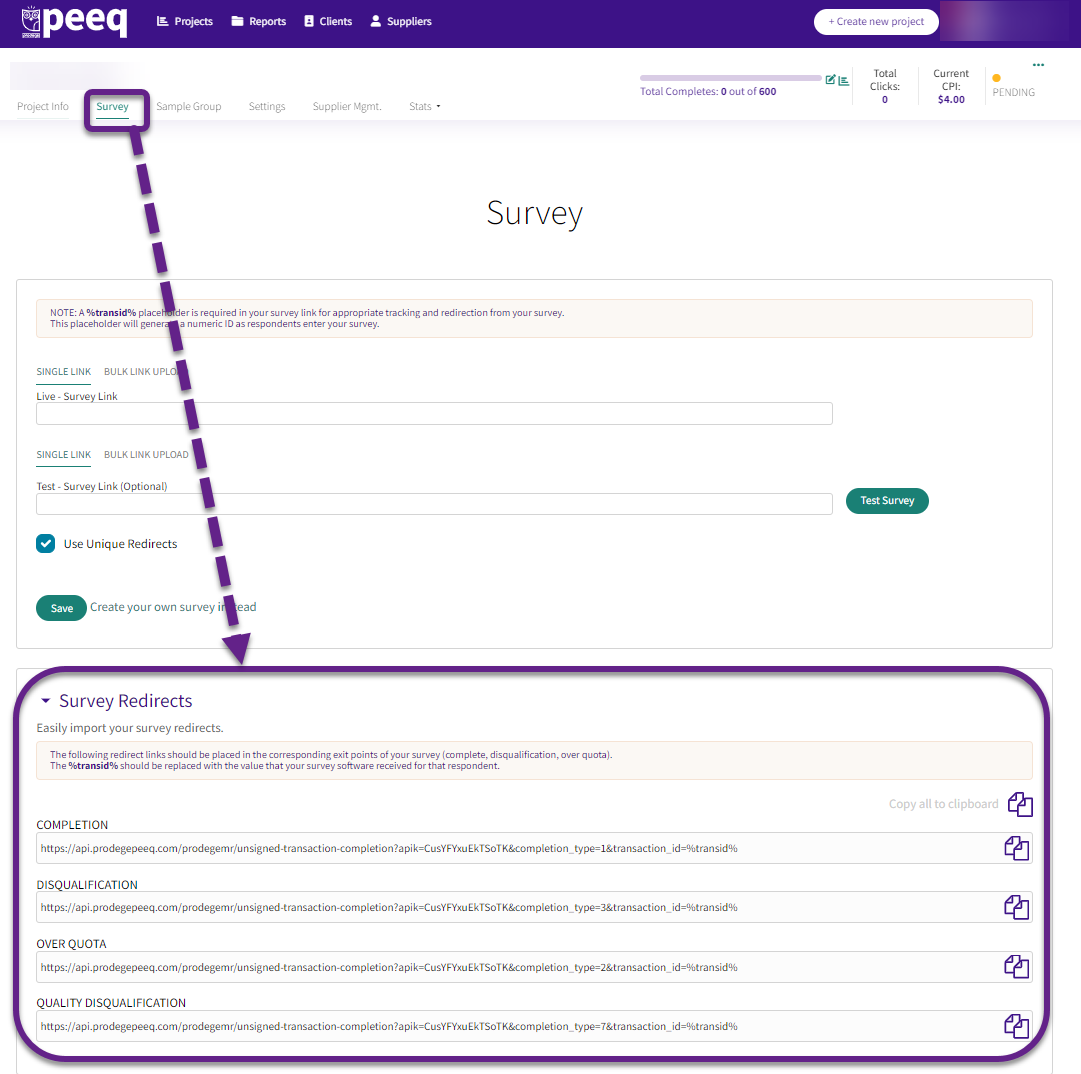
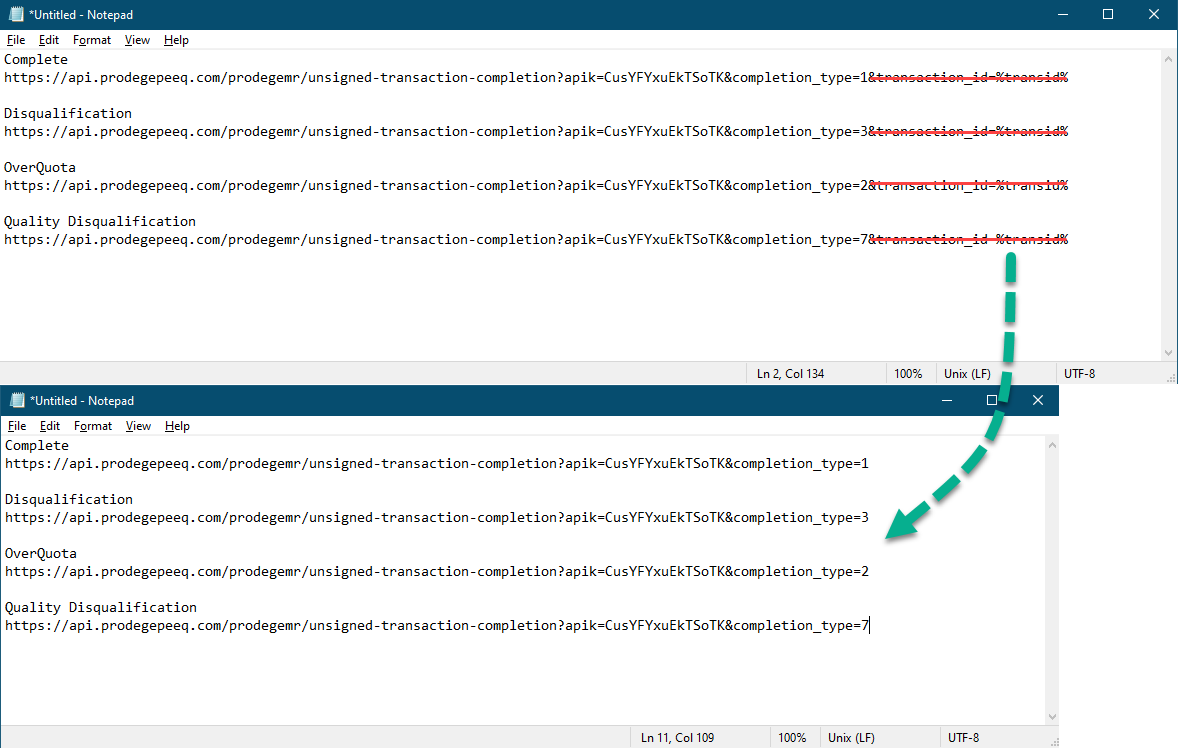
Under the survey tab in your peeq project, scroll down to the Survey Redirects. The OverQuota and Quality DQ redirect links are optional. Copy and paste the redirects into a text editor and remove &transaction_id=%transid% from the redirect links, as in the example below:
Place Redirects in SurveyMonkey
Click "Show Advanced Options"
Paste the modified Complete redirect to Custom Survey End Page
Paste the modified Disqualification redirect to Custom Disqualification
Add Custom Variable to SurveyMonkey
Click into the "Design Survey" tab, select "Logic", then "Custom Variable"
Set Variable Name and Label to "transaction_id"
Go to the "Collect Responses" tab, select "Share a Survey Link" and copy the generated web collector link
Place survey entry link into peeq
Before placing the survey link in peeq, the survey link from needs to be updated to tell peeq where to put the transaction ID in the URL.
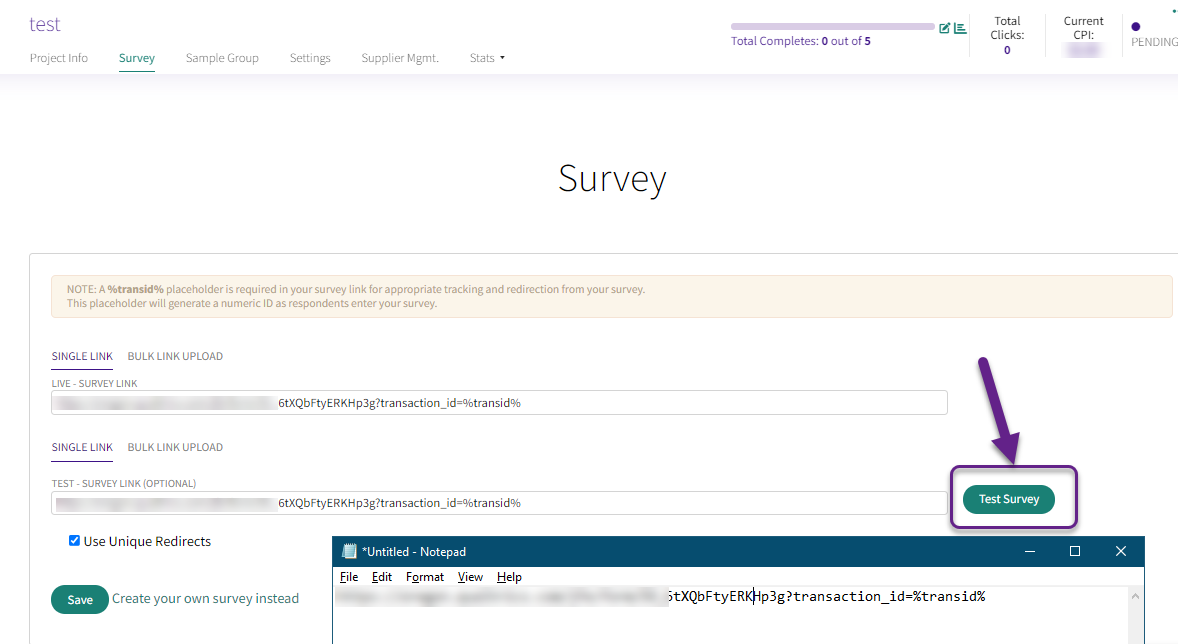
In a text editor, update the SurveyMonkey placeholder to %transid%
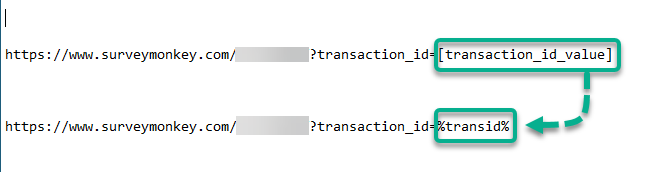
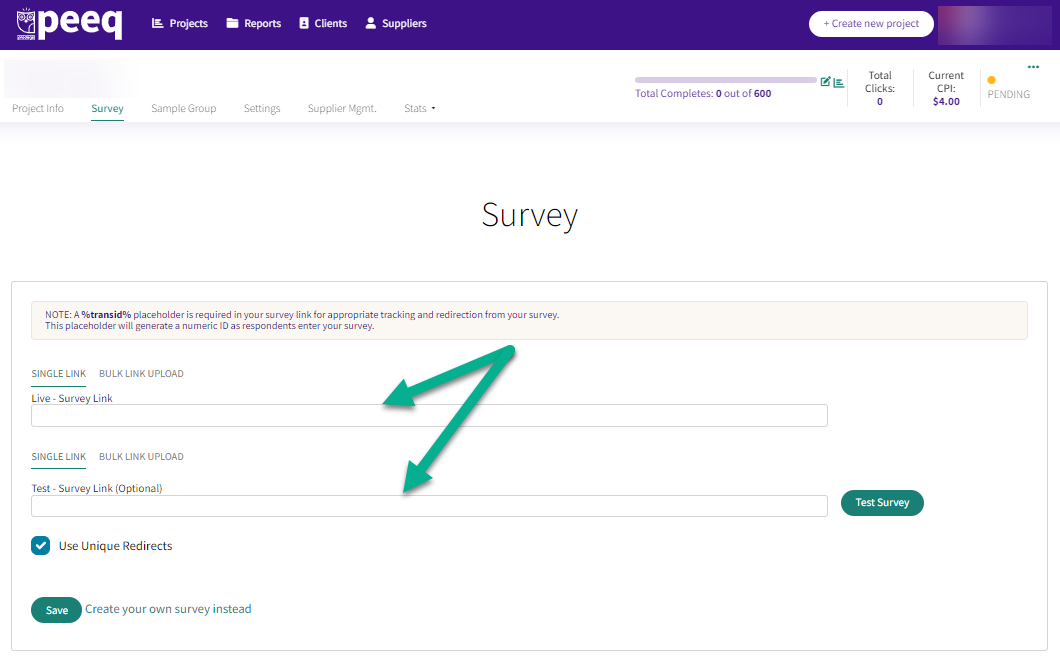
Paste the updated survey link into the LIVE and TEST boxes in peeq and click SAVE and the survey is now ready to test.
Testing the survey link before launch
Testing for a complete and termination is recommended to check the survey logic and to make sure the responses are being captured and the redirects are working as intended. Once the changes in Prodege peeq are saved, you can click “Test Survey”
When testing, you may have to answer a few questions based on the selections made in the Sample Group for this study. If you are testing for a Disqualification, qualify for those questions first to ensure you have entered the SurveyMonkey survey.
If successful, you should be returned to the Prodege peeq Dashboard on a screen showing the transaction ID of the test, and peeq’s recorded status of that ID. If you are redirected to the swagbucks.com login page, it indicates the transaction ID is not being passed properly
Tip: When returned to Prodege peeq, Check the respondent status matches what you are testing for, i.e. terminates aren’t being sent to complete redirect, etc.
Once the survey is tested, it can be launched. For additional details on launching a project, visit our section on launching a new project
Have more questions or need additional support?
Our experts are happy to do a screen share and walk-through this process with you.
Submit a request or Live Chat with us!