
This article assumes Prodege peeq redirects have been prepared for implementation into Qualtrics.
Instructions on preparing the Qualtrics redirects for Prodege peeq can be found here
The Quota Full and Quality Disqualification redirects are optional, but useful redirects for surveys that contain quotas or attention check questions. Respondents who are redirected to these links will not be counted against the project’s incidence rate, and allows more accurate tracking of project performance in Prodege peeq.
Additional information regarding creating and managing quotas in Qualtrics is available here
What is Quota Full?
When a quota in Qualtrics is filled, any additional respondents meeting the criteria for that quota can be redirected to the quota full redirect.
For example, if you are limiting the number of responses for Age 18-24 to 5 completes, anyone answering 18-24 can be redirected to Quota Full once you have reached 5 completes for that group, while completes 25+ can continue to the survey.
What is Quality Disqualification?
The Disqualification redirect is used if your survey contains an attention check or speeder check question.
For example, if you are checking to see if a respondent is paying attention by implementing a question asking respondents to “select option 3,” and a respondent selects something else, they can be redirected to the Quality Disqualification redirect for failing the attention check. Likewise, if the survey contains logic to disqualify someone for taking the survey too fast, they can be directed to Quality DQ.
Implementing Quota Full
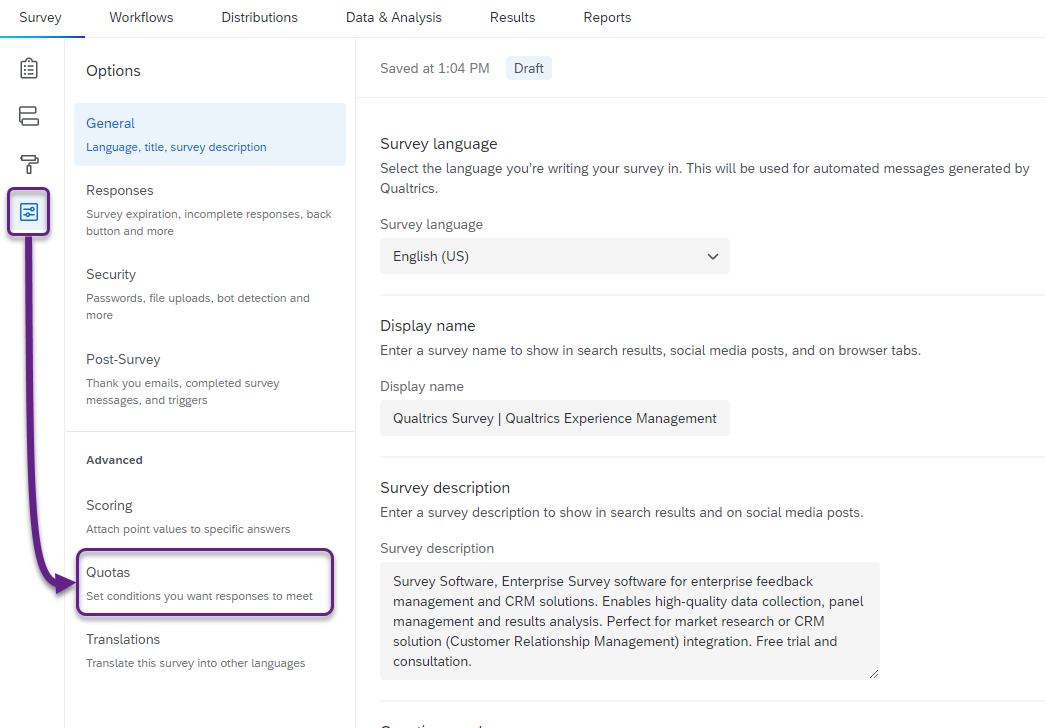
In the ‘Survey’ tab, select ‘Tools’ menu and select ‘Quotas’
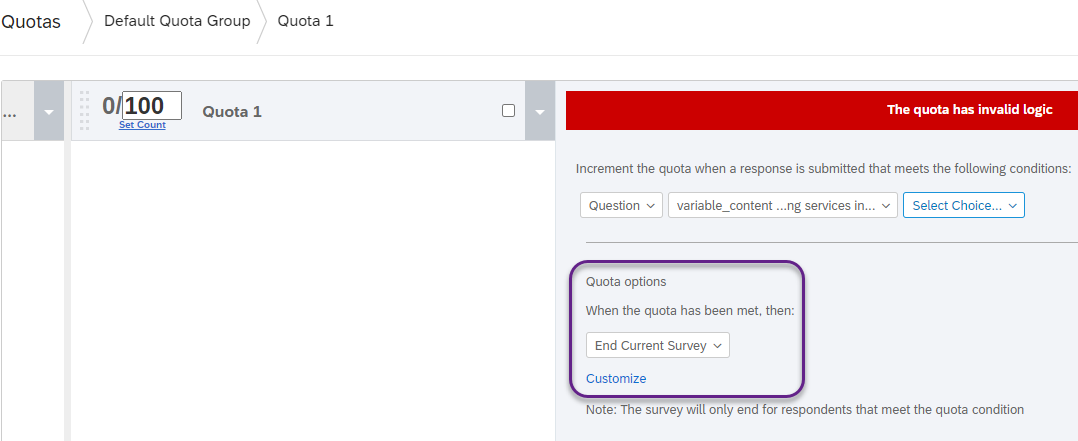
Once your quotas have been defined, select “End Current Survey” and “Customize” with “End Current Survey” selected.
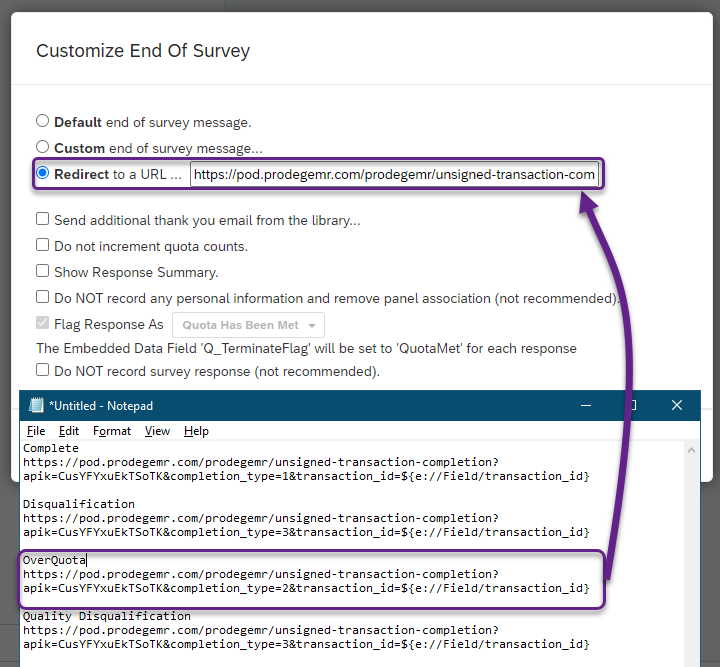
Paste the Overquota Redirect with ${e://Field/transaction_id} in place of %transid% in the ‘Redirect to a URL’ box
For additional information on setting up and managing quotas in Qualtrics, please check the Qualtrics documentation at this link
Implementing Quality Disqualification
The setup for this redirect is similar to the Terminate redirect. To get started, create a new End of Survey element after the attention check question and Paste the Quality Disqualification redirect with ${e://Field/transaction_id} in place of %transid% in the ‘Redirect to a URL’ box:
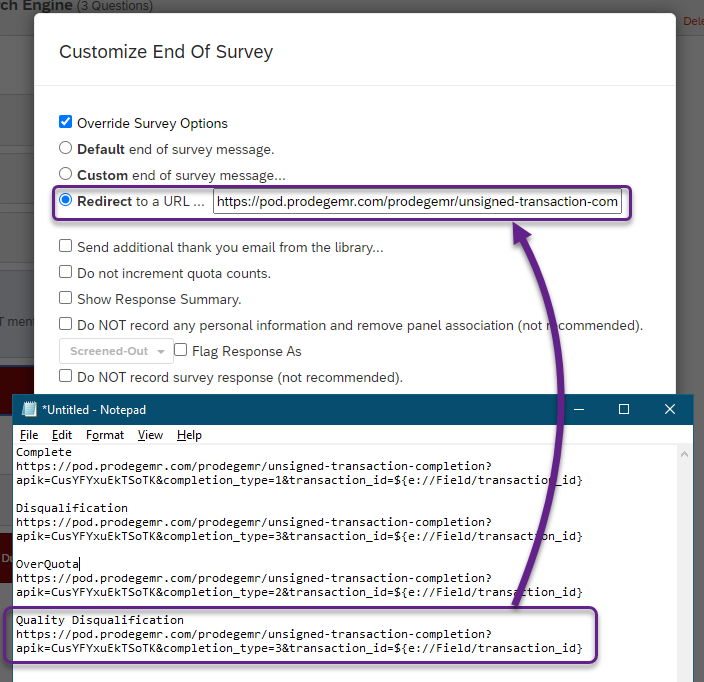
If the survey contains multiple attention attention checks, follow the steps above for each attention check, and ensure the End of Survey element is after each question.
Tip: To ensure the logic and redirect are implemented correctly, test the survey thoroughly and check the statuses in Prodege peeq and Qualtrics and verify they match
Have more questions or need additional support?
Our experts are happy to do a screen share and walk-through this process with you.
Submit a request or Live Chat with us!