
The following article describes how to prepare and implement the Prodege peeq redirects into a Qualtrics survey, adding the Qualtrics link into peeq and testing the redirects.
This article covers the implementation of the Complete and Disqualification redirect. Additional information regarding the Overquota and Quality Disqualification can be found our article on quota full and quality disqualification redirects.
Table of Contents
Set up variable capture in Qualtrics
Format peeq redirects for Qualtrics
Implement peeq redirects in Qualtrics survey flow
Format Qualtrics survey link for peeq
Testing the Qualtrics link in peeq
Set up Variable Capture in Qualtrics
The redirect setup in Qualtrics has two main steps: Setting up Qualtrics to capture the transaction_id from the survey link and implementing the redirect links into the survey flow
Respondents are tracked with a unique identifier called a Transaction ID. This allows Prodege peeq to track a project’s performance and credit respondents. This ID will be captured by the Qualtrics survey when a respondent clicks in, and passed back to the Prodege peeq redirects when the respondent exits the survey.
Prepare Qualtrics to capture Transaction IDs
The following steps creates a new field in the survey that will capture the incoming transaction IDs so the responses for each respondent can be matched up to the answers in Qualtrics, as well as passed back to Prodege peeq.
- Enter the Survey Flow editor in Qualtrics
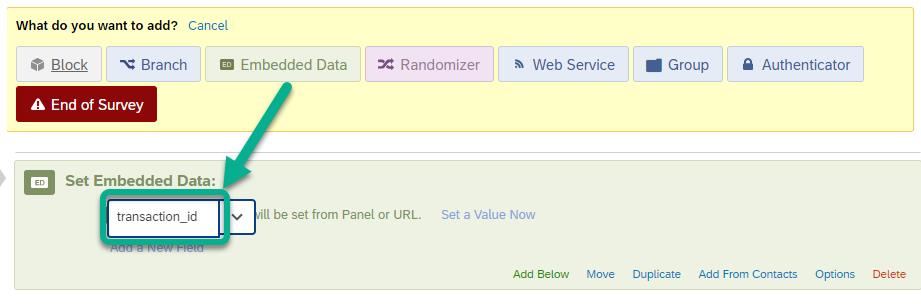
- Click on “Add New Element Here” and “Embedded Data”
- Type in “transaction_id” - Do not use the ‘Set a Value Now’ to this field
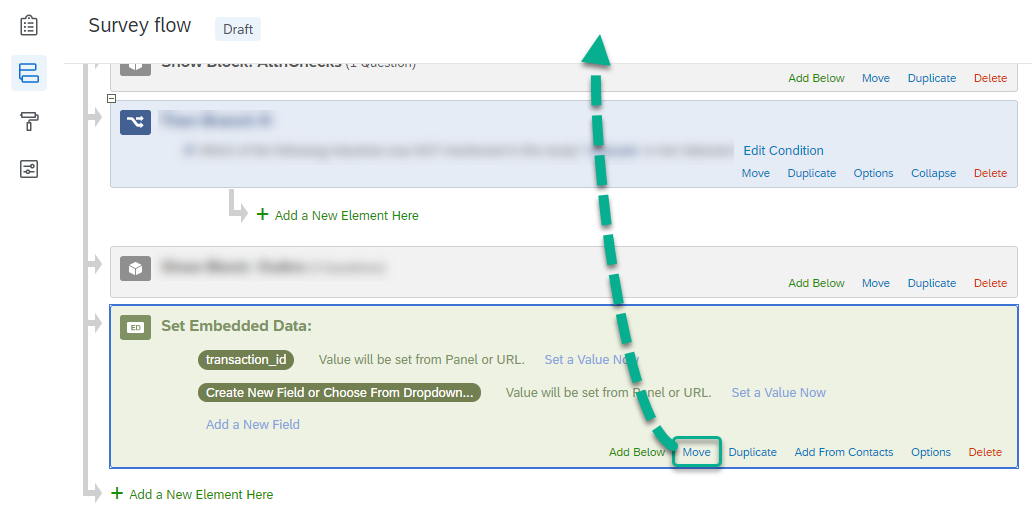
- Move the Embedded Data field to the very beginning of the survey flow.
Enter the survey flow and add a new element:
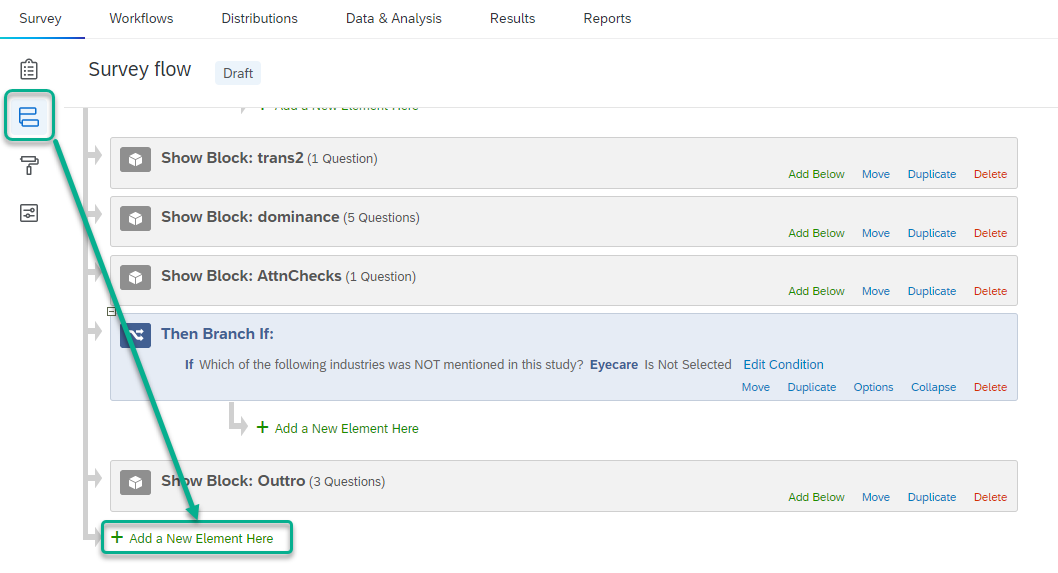
- Create the embedded data field:
- Move the Embedded Data element so it’s the first element in the survey flow:
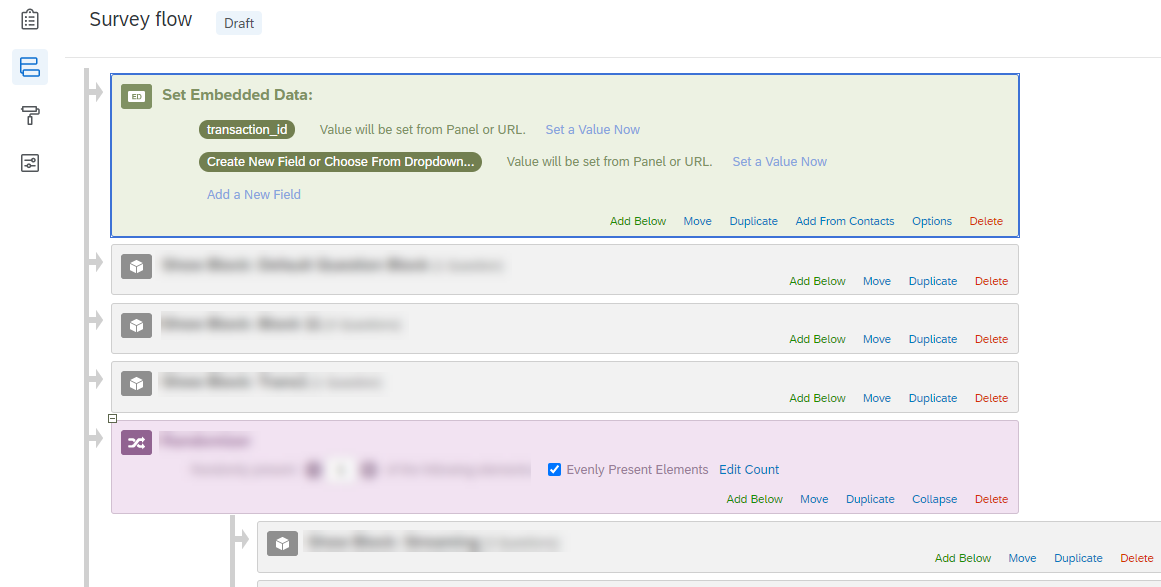
When completed, the beginning of the survey flow should look like the example below, with the embedded data field as the first element in the data flow:
Tip: Remember to click “Apply” to save changes to the survey flow
Prepare peeq redirects for Qualtrics
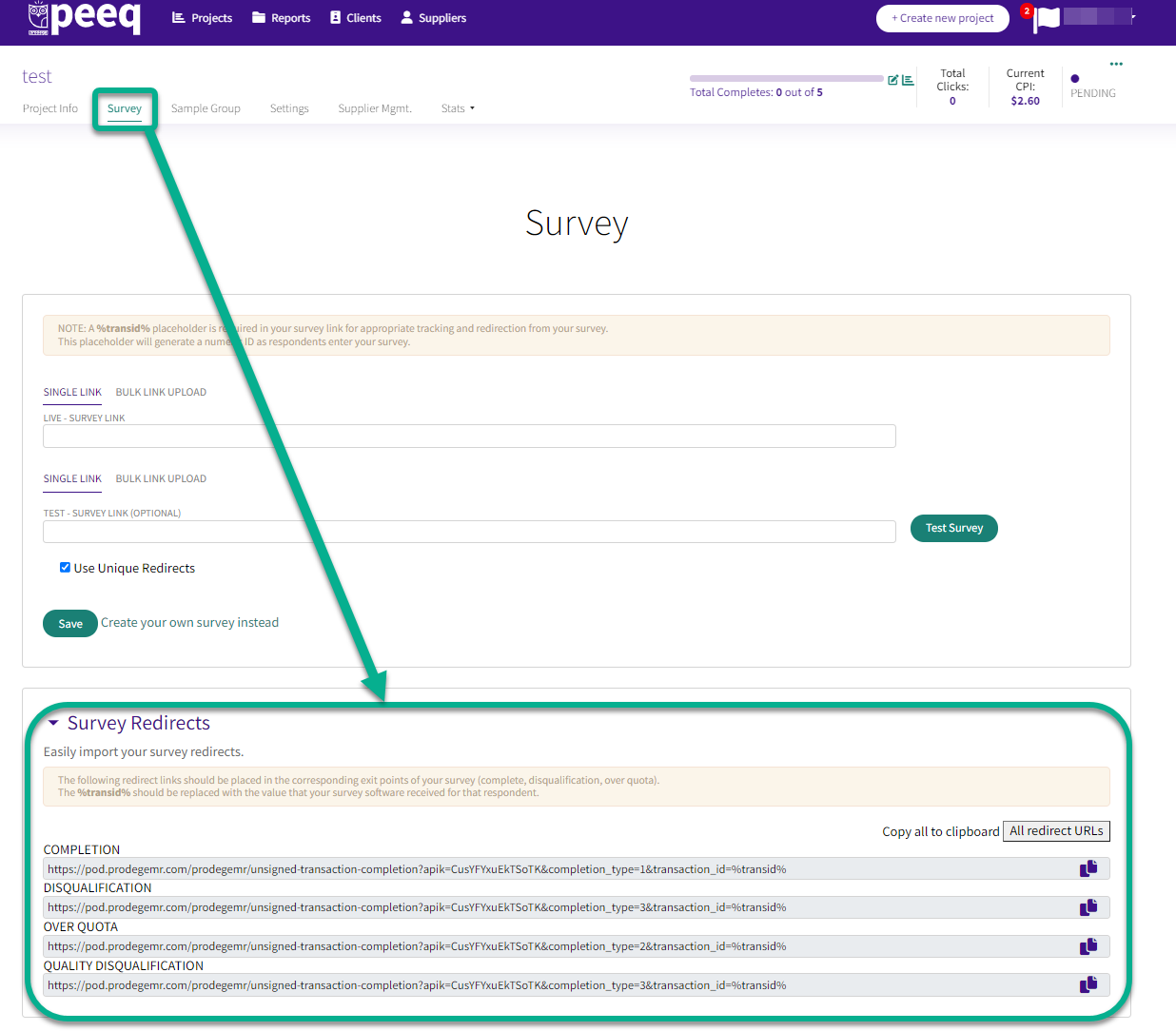
The Prodege peeq redirects can be found under the “Survey” section of a project:
Copy and paste the redirects into a text editor and replace %transid% with ${e://Field/transaction_id}
Note: The Qualtrics placeholder tells Qualtrics where to put the captured Transaction ID from Prodege peeq.
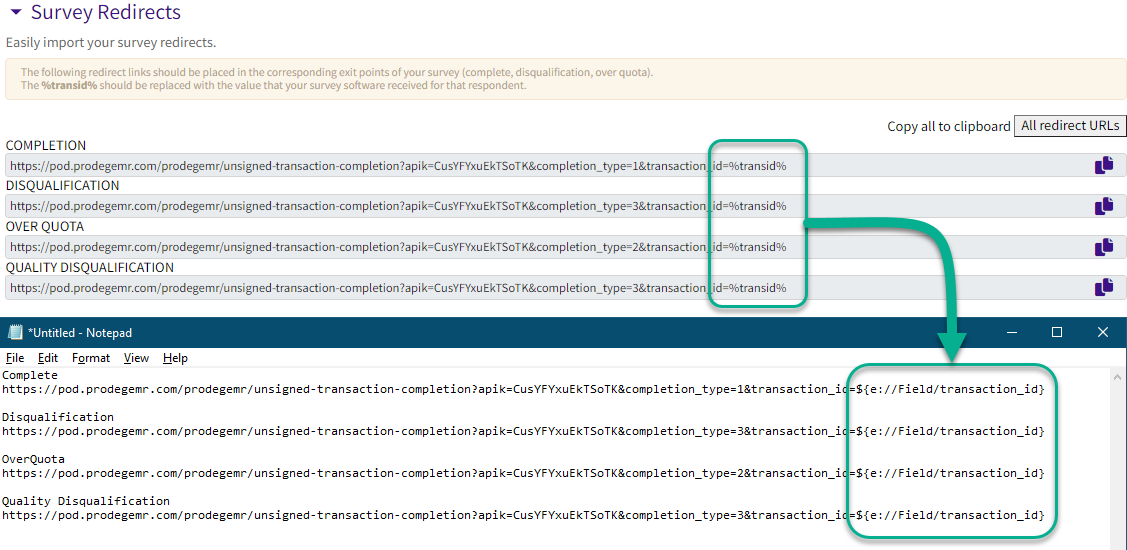
Tip: “All Redirect URLs” will copy all redirects to your clipboard, making it easier to paste into a text editor. Not all surveys will utilize all four redirects.
Setting up the redirect links in the Qualtrics Survey Flow
Once the survey is set up to capture the transaction_id, the redirects can be implemented into the survey flow. The section below covers how to set up the Complete and Terminate redirects in Qualtrics. This ensures that respondents will be tracked and credited accordingly in Prodege peeq.
Implementing the Complete redirect
The Complete redirect is for respondents who’ve qualified for, and completed the whole survey. This allows Prodege peeq to track the number of completes and credit them accordingly for their time.
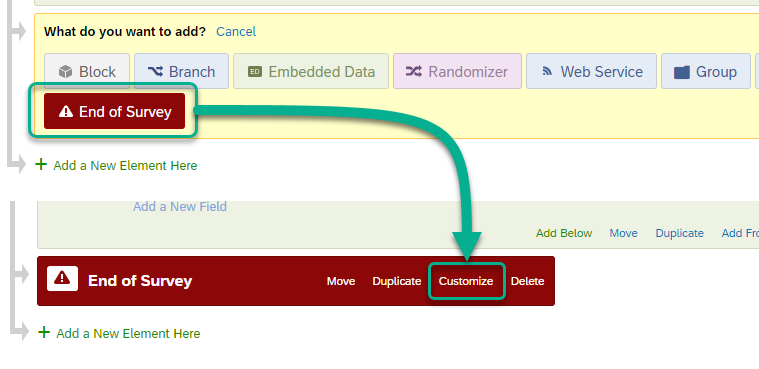
To implement the ‘Complete’ redirect, add an “End of Survey” element after the last question of the survey and implement the redirect link and click Customize:
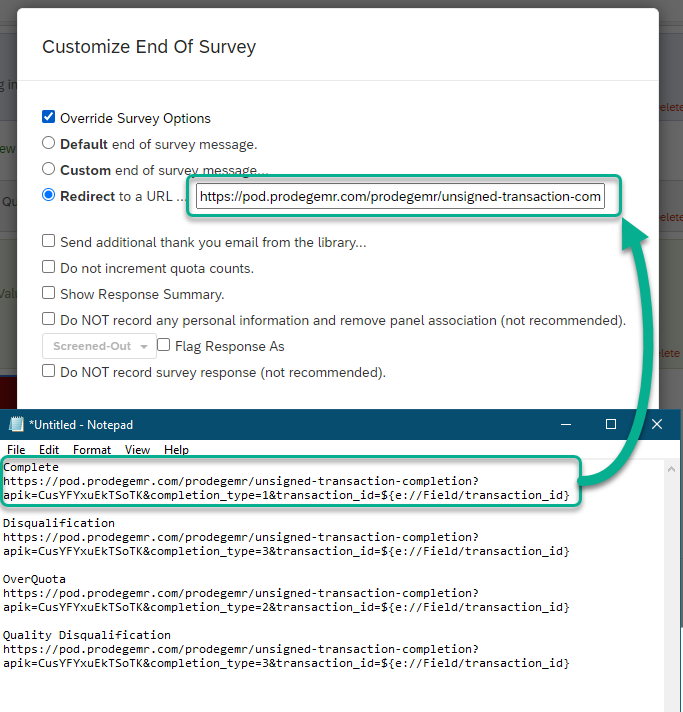
In the Customize End of Survey menu:
- Select “Override Survey Options”
- Select “Redirect to a URL”
- Paste the modified Complete redirect with ${e://Field/transaction_id} in place of %transid%
Note: Remember to apply changes to the survey to ensure they are saved
Implement Terminate redirects
What is a terminate redirect?
Terminate redirects are used when there are screening questions, also known as qualifications or termination points. These are typically asked towards the beginning of the survey and help target the intended audience. If a respondent doesn’t qualify for the survey, they are redirected to the terminate redirect instead taking the whole survey.
Implementing the Terminate Redirect
The steps are similar to setting up the Complete redirect
- “Add New Element Here” after the screening question(s) or question block
- Select ‘End of Survey’ and click ‘Customize’
- Click ‘Override Survey Options’
Create new “End of Survey” element:
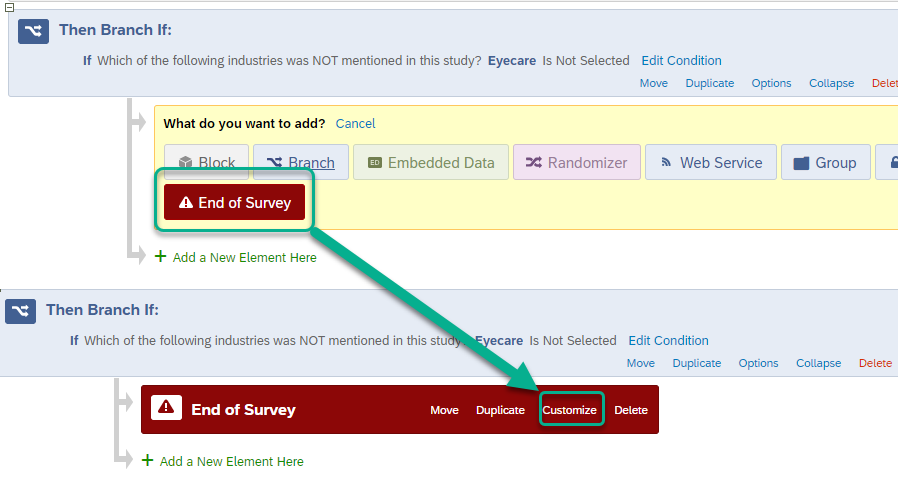
In the “Customize End of Survey” menu,
- Select “Override Survey Options”
- Select “Redirect to a URL”
- Paste the modified Terminate redirect with ${e://Field/transaction_id} in place of %transid%
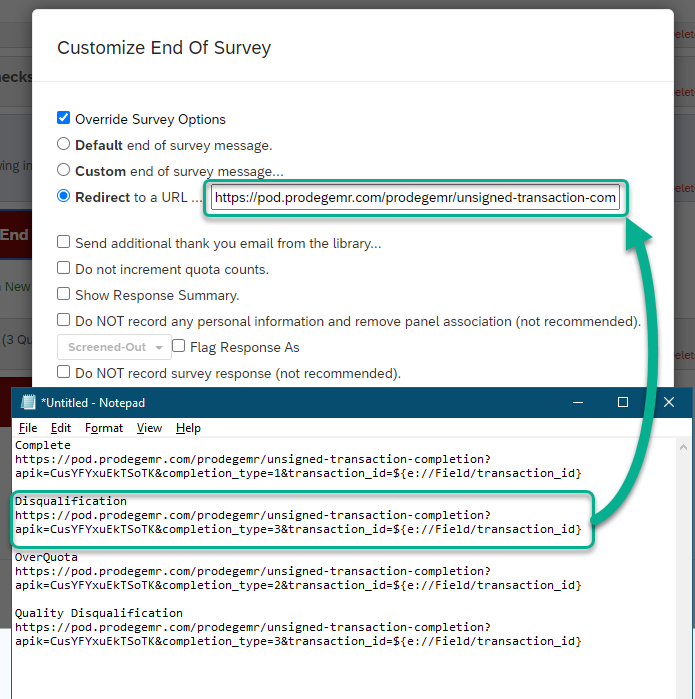
Note: Remember to apply changes and to the survey to ensure they are saved and publish the changes
Overquota and Quality Disqualification Redirects
The overquota redirect is used when there is a limit on the responses to certain questions. When the limit (quota) is reached, any additional responses on that are sent to the overquota redirect. Quality DQ is used when a respondent fails quality measures, such as attention checks or speeder traps. For more detailed information on the setup of those redirects, please visit this supplementary article
Implementing the survey link into peeq
Once all the redirect links are in place and the survey is published, the survey link can be implemented in peeq for testing and launch. Testing ensures the Transaction ID is being captured and the redirects are working.
Preparing the Qualtrics link for Prodege peeq:
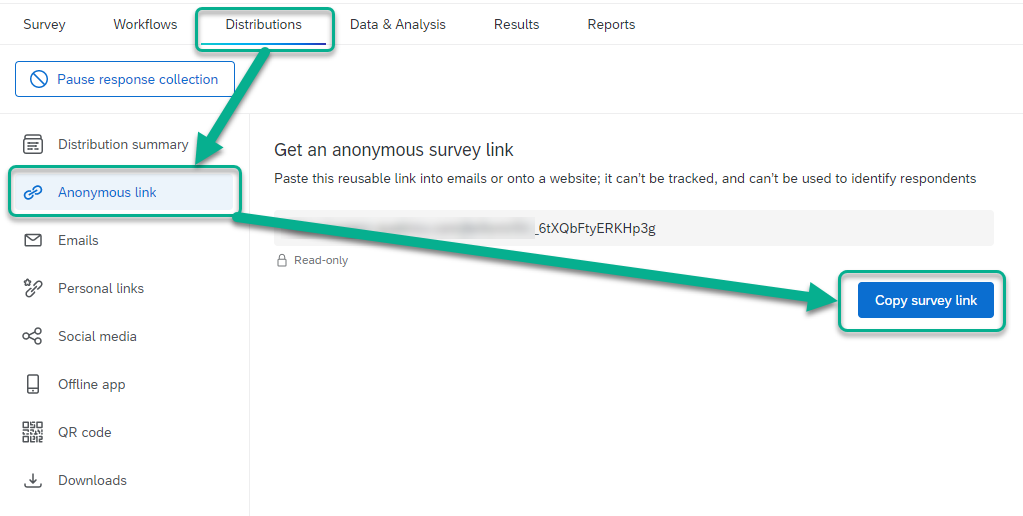
- Click on ‘Distributions’ in Qualtrics, go to Anonymous Link and Copy Survey Link
- Add ?transaction_id=%transid% to the end of the anonymous link
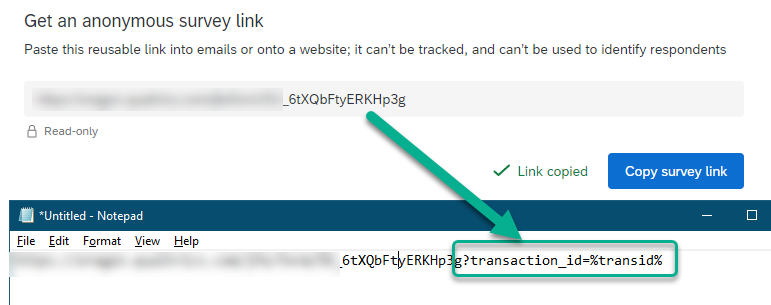
Copy the modified Paste the full link in Prodege peeq under the Survey tab into the LIVE and TEST boxes, and click “Save”
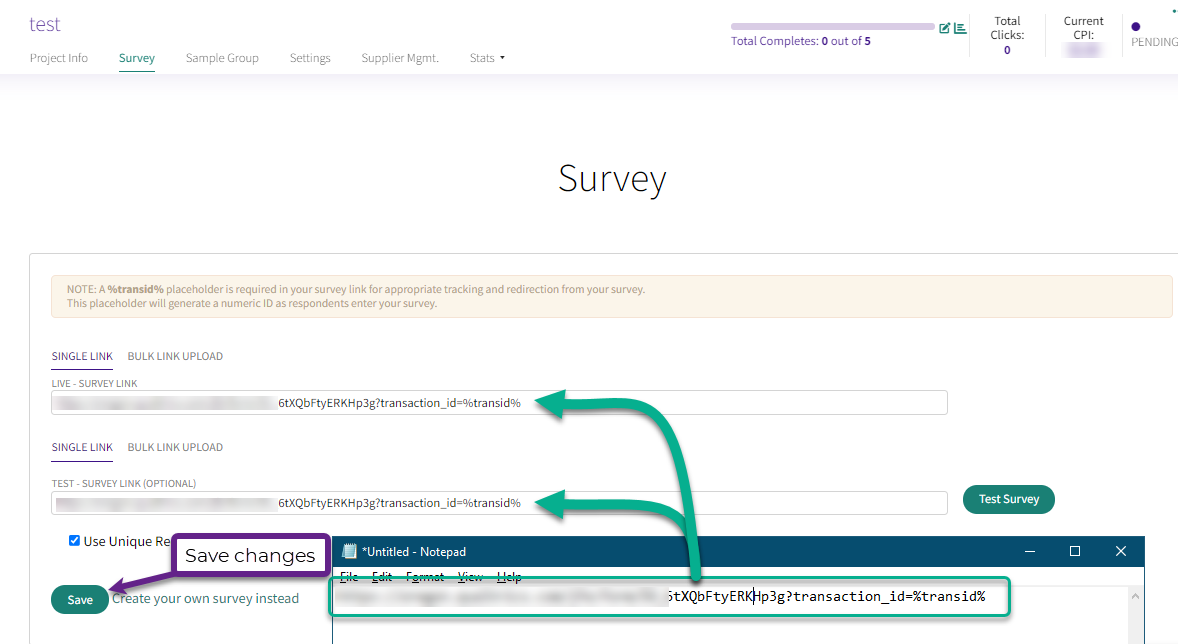
The survey is now ready to be tested
Testing the Qualtrics link in Prodege peeq
Testing for a complete and termination is recommended to check the survey logic and to make sure the responses are being captured and the redirects are working as intended. The survey must be tested from within peeq, as the platform generates a specific test ID each time the Test Survey button is clicked.
Once the changes in Prodege peeq are saved, you can click “Test Survey”
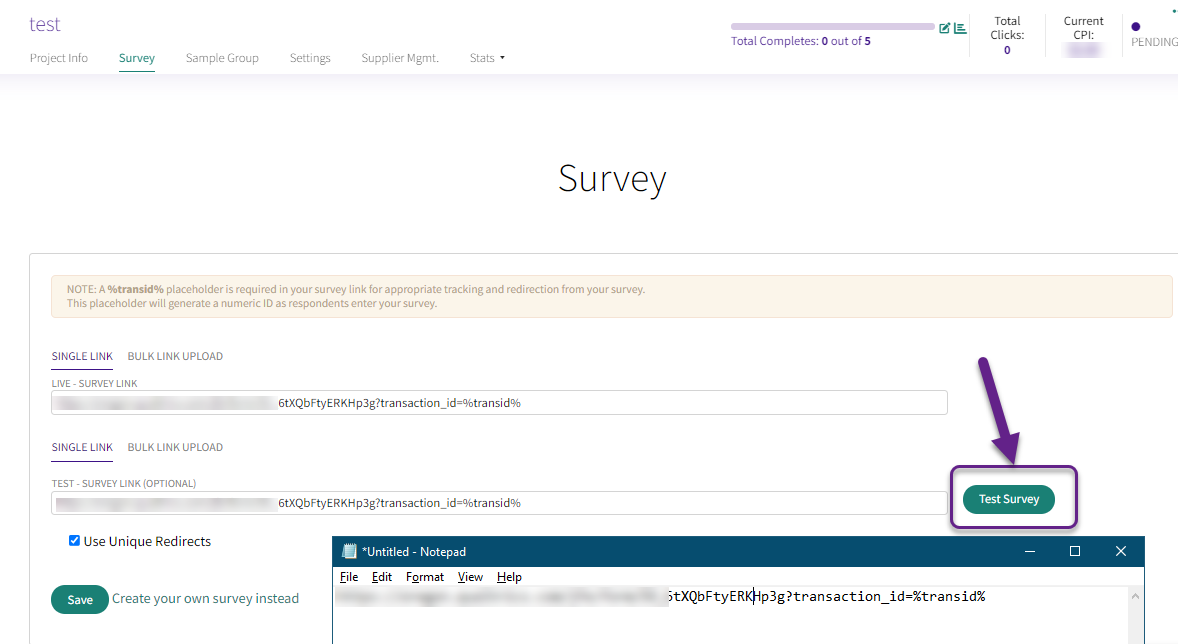
When testing, you may have to answer a few questions based on the selections made in the Sample Group for this study. If you are testing for a Disqualification, qualify for those questions first, so that you’re in the Qualtrics survey.
If successful, you should be returned to Prodege peeq with a screen showing the transaction ID of the test, and Prodege peeq’s recorded status of that ID.
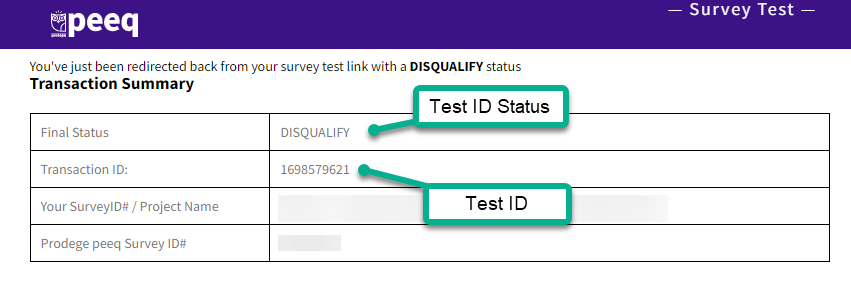
If you are redirected to a swagbucks.com login page, it indicates the transaction ID is not being captured
Tip: When returned to Prodege peeq, Check the respondent status matches what you are testing for, i.e. terminates aren’t being sent to complete redirect, etc.
Launching and managing a project see our article section on project launch and management
Have more questions or need additional support?
Our experts are happy to do a screen share and walk-through this process with you.
Submit a request or Live Chat with us!