
Connecting Prodege peeq respondents to your survey begins with placing the survey redirects into the survey platform, then placing the survey link into Prodege peeq. Any survey tool that can capture and pass back a variable from the survey link to the redirects, is supported.
For additional information in setting up Recontacts where each respondent must go to a specific link, please visit our article on recontacts with bulk links
Transaction ID
The Transaction ID is a numeric identifier that is generated for each respondent as they enter and exit the survey. This allows Prodege peeq to track respondents’ statuses and project metrics, and each response in the survey platform being used. Prodege peeq will automatically insert the Transaction ID where the placeholder %transid% is inserted in the link setup.
Additional Variables
Additional profiling information about a respondent, or sample source, can be passed into the survey link. This can include age, gender, postal code, and other profiling points in Prodege peeq.
More information regarding these variables is available here <optional placeholders link> or you can reach out to the support team using our 24/7 Chat feature, or by email and we can assist in the setup process.
Survey Link Types
Single Links and Bulk Links, sometimes known as unique links, are supported.
Single Links - A single URL that allows respondents to enter the survey, with each respondent being assigned with a unique Transaction ID on survey entry.
Bulk links - Typically used when the survey tool or project requires one link per survey entry, with each link being used only once per respondent. This is often used on recontacts where each respondent may need to answer a different set of questions.
Survey Redirects
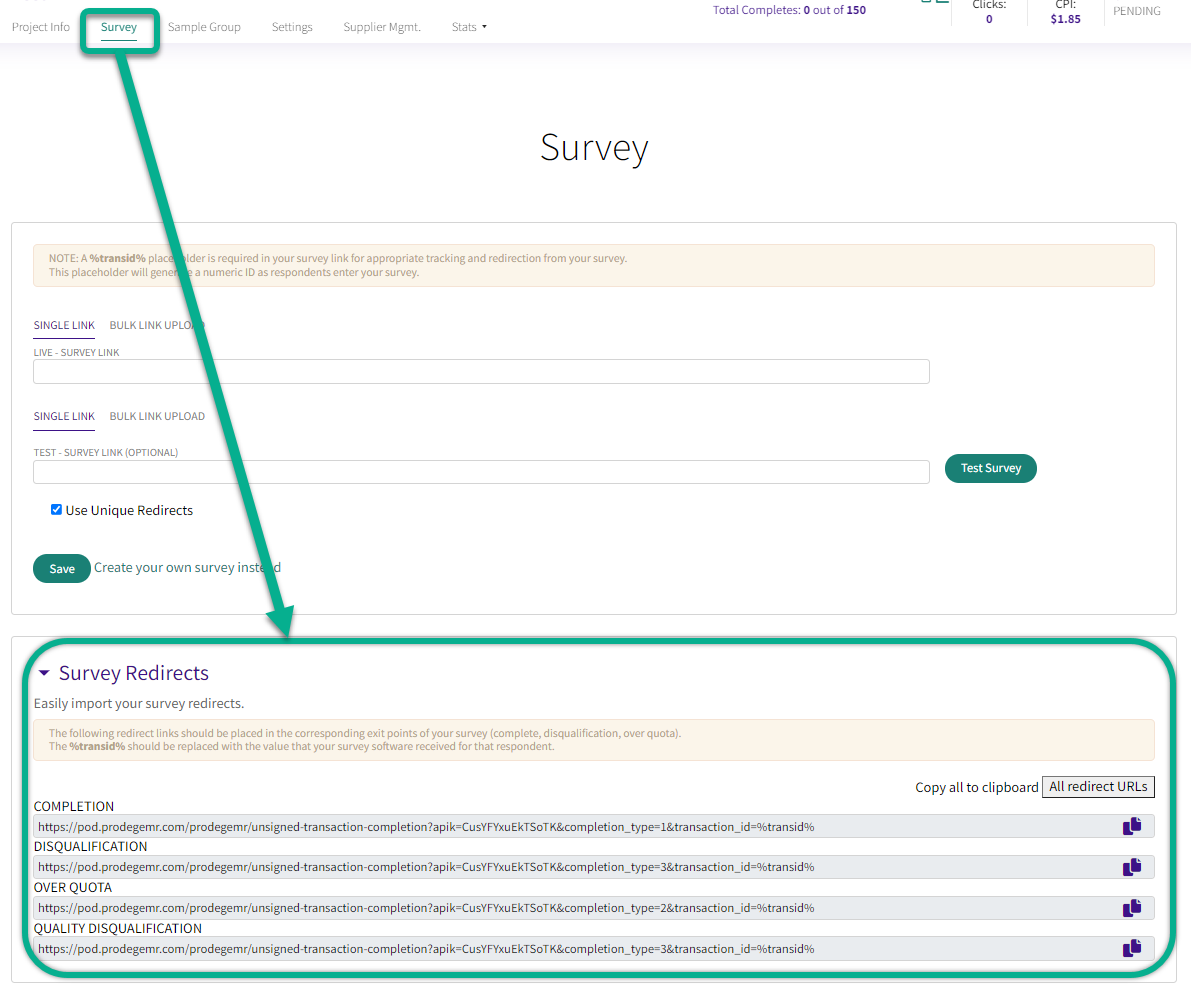
The redirects allow Peeq to track the status of each respondent when they exit the survey and credit them appropriately, to create accurate metrics.
Use Unique Redirect should always be checked except in limited cases
The Prodege peeq redirect links can be found in the Survey Redirects section under the Survey tab of the project
Single Link Setup
Once the redirects are set up in the survey tool, the entry link can be pasted into the Live box. If you are using a separate link for testing, it can be pasted in the TEST box.
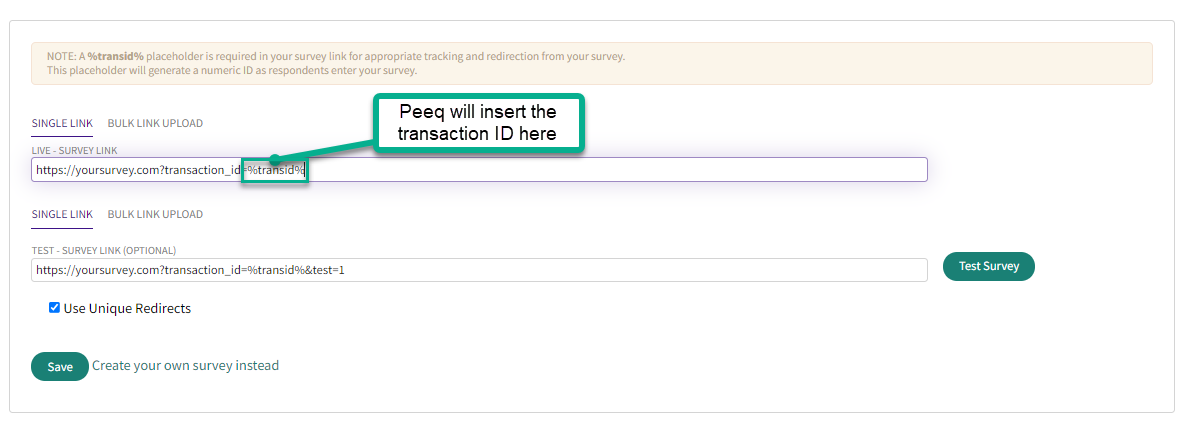
Upon saving, the survey is ready to test through the Test Survey button.
Bulk Link Setup
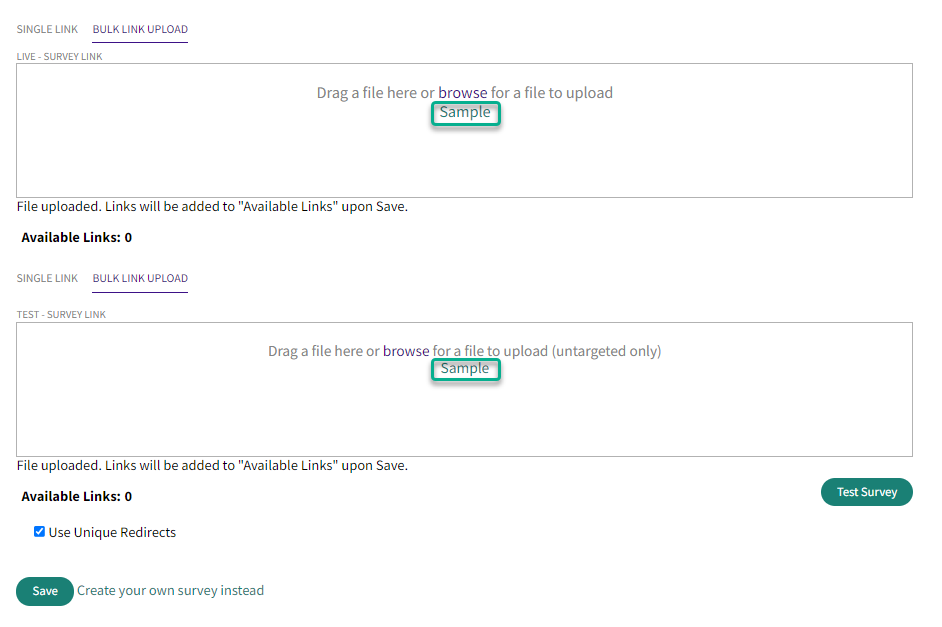
Clicking on Bulk Link Upload will open a menu where test and live bulk links can be uploaded.
Note: Uploading more links up front can help to prevent the project from pausing when all the links are exhausted
The file template can be downloaded by clicking on “Sample” in the menu:
Redirect Testing
Once the setup of the redirects and links are complete, the survey is ready to test. When the "Test Survey" button is clicked, you will see a screen displaying the Test Transaction ID:
NOTE: The screening questions on the following screen only appear for testing purposes. Qualify past the profiling questions to enter the survey and terminate from within the survey itself
On a successful test, you should be directed back to peeq in showing the captured status and transaction ID
If the survey exits to swagbucks.com, it indicates the transaction ID is not being passed and additional troubleshooting is needed
Double check the displayed status for the test ID in Prodege peeq matches the status in the survey.
Have more questions or need additional support?
Our experts are happy to do a screen share and walk-through of this process with you.
Submit a request or Live Chat with us!