
When you have reached the number of completes desired and the final list of accepted IDs are ready, the project can be set to complete. Changing the project status to COMPLETE will kick off the reconciliation process and allow the final count of accepted IDs to be uploaded, and project costs to be confirmed.
Invoices are generated and sent once a month for all projects set to Complete in the prior month.
If a project does not receive any new clicks in 15 business days, Prodege peeq automatically transitions the project to a ‘Complete’ status. If an extension is required, please reach out to us via our 24/7 chat feature or by email with the project number. For additional information, visit our article on auto-transition
Completing a project
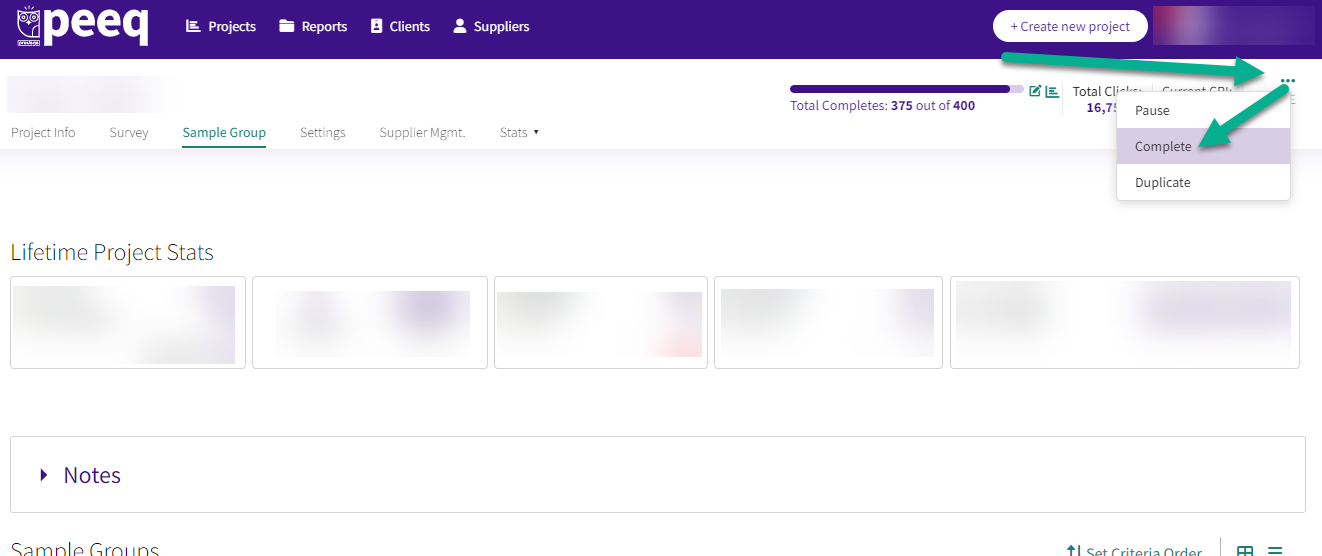
To complete a project in peeq, update the status of the project from the three dots in the top right corner and set the study to COMPLETE.
If no further action is needed, clicking “Complete Project” will finalize and close the project. If the number of accepted completes differs from the billable completes, project reconciliation can be performed.
Project Reconciliation
If the number of accepted completes differs from the number of completes collected in peeq, reconciliation allows for the completes and costs to be adjusted. The file must be in a .CSV format with the column header "TransactionID." A template can be downloaded from the reconciliation window.
Carefully review the number of completes to ensure it matches the accepted completes.
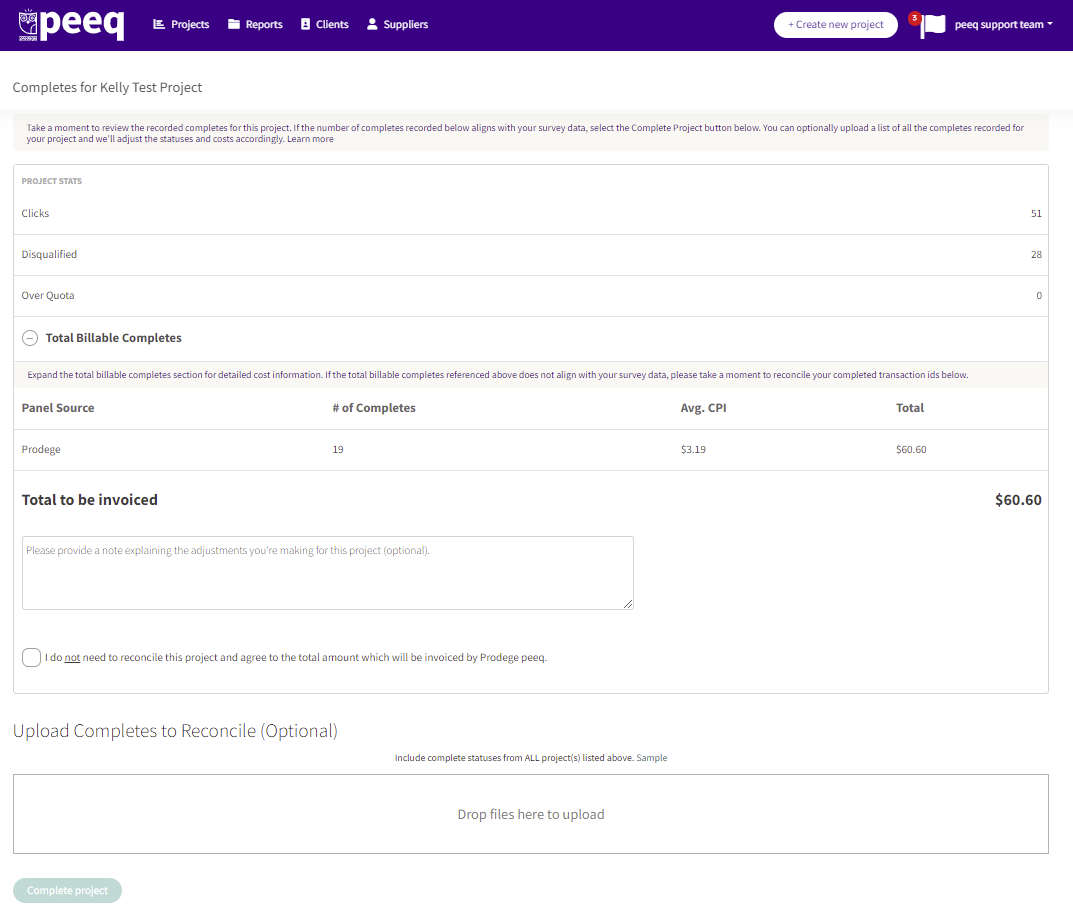
Once the file is uploaded, an updated summary will be presented for approval.
If further adjustments are needed, click the icon next to the file name to replace the uploaded file.
After reconciliation, a billing summary page page will appear in the project showing the number of completes and dollar amount that will appear on the invoice.
Note: The number of completes on the project page itself may differ, as it reflects the number of completes captured for the project, not the billable numbers
Have more questions or need additional support?
Our experts are happy to do a screen share and walk-through this process with you.
Submit a request or Live Chat with us!