
This article provides an overview of how to navigate the Prodege peeq dashboard.
Dashboard Overview
Once you log in, you will see the screen below:
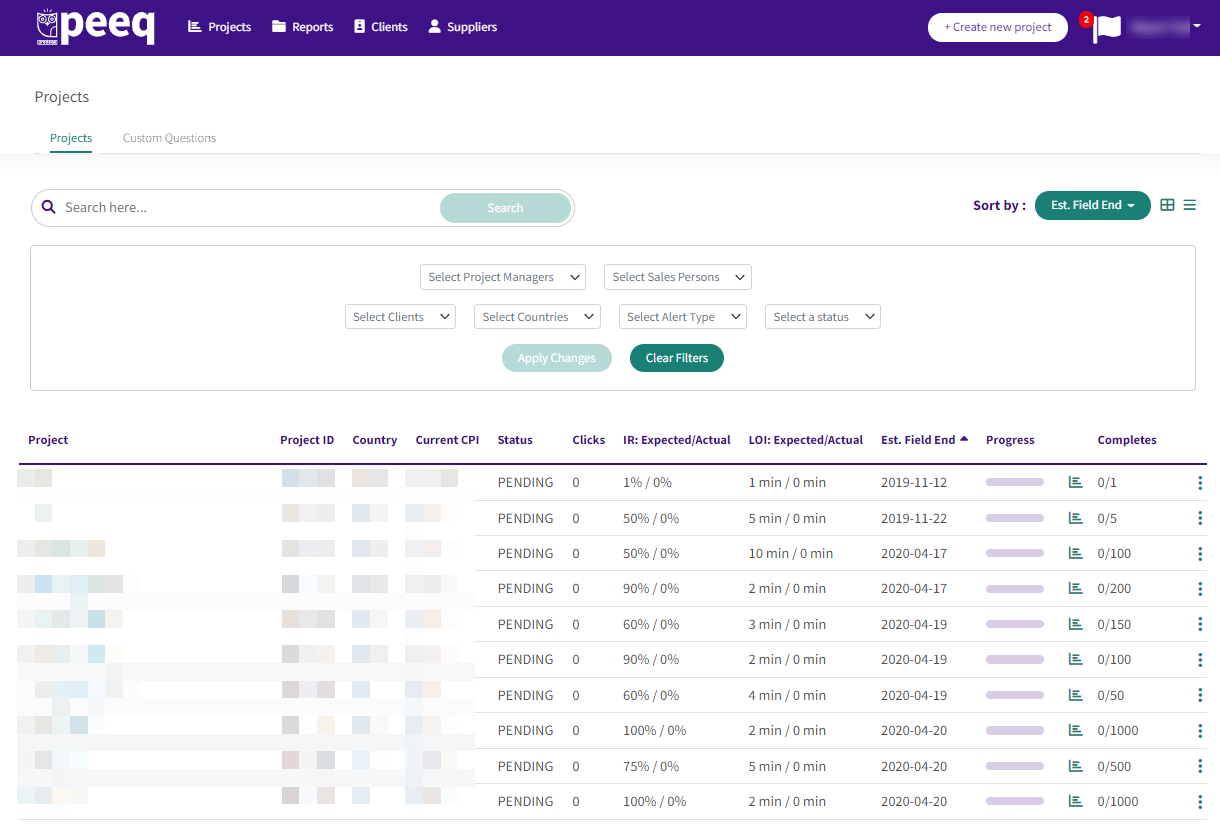
At the top of the screen, you can see the main menu: Projects, Reports, Clients and Suppliers where you can manage and view your projects, reports, clients, suppliers and project alerts. Additional sorting options are available:
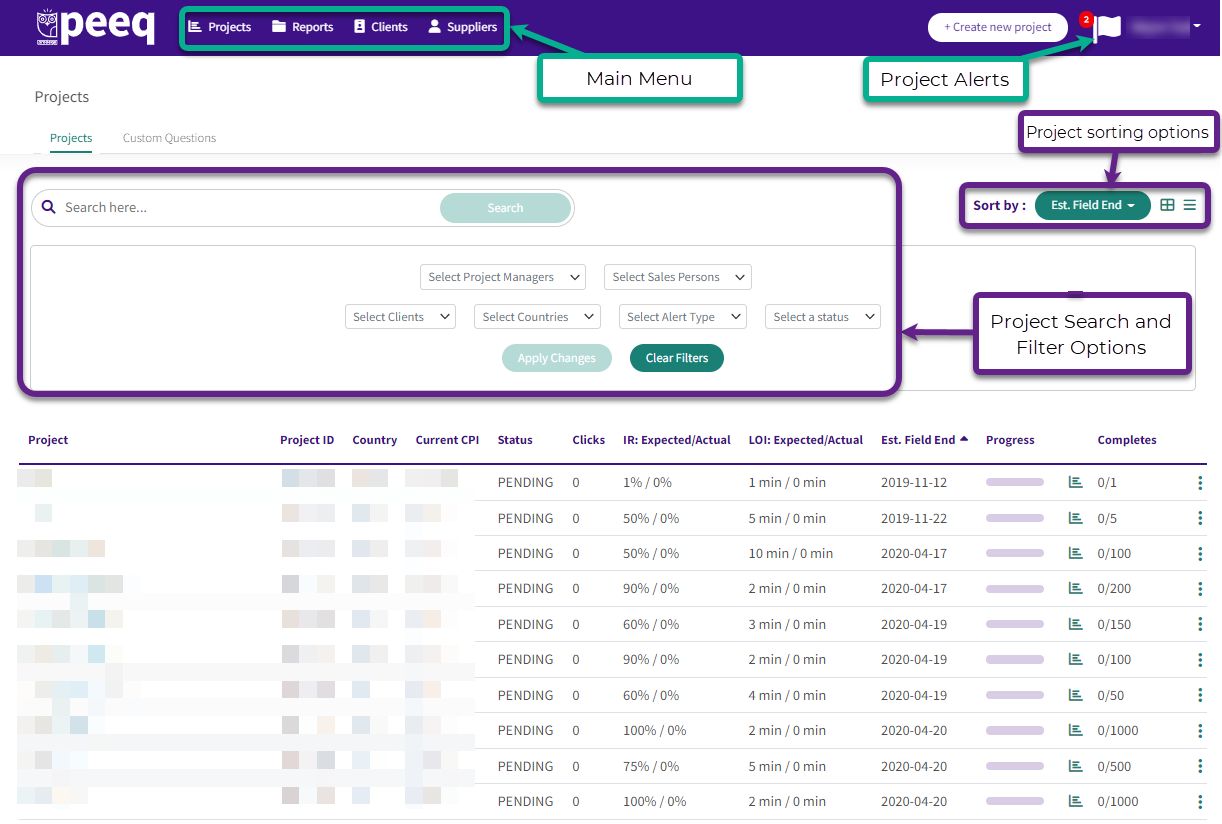
Additional information on the main menu below:
- Projects: Set-up Your Project
- Reports: Running Feasibility & Determine Price
- Clients: Client Management
- Suppliers: Manage any sample suppliers brought on for your peeq project
- Create New Project: Create a new project. An existing feasibility report can also to a project. For more information please visit the article: Set-up Your Project
- Project Alerts: Clicking the flag will show alerts from projects in your account. A red dot will appear if any alerts are unread.
Searching and Sorting Projects
Tip: If you’ve recently set up a new project and it does not appear, adjust the Status filter to include the Pending status.
The Search bar at the top left can be used to find a specific project based on information such as Peeq project name or number, PO number, etc.
The filters at the top center of the dashboard allow you to filter projects by making selections and clicking “Apply Changes”
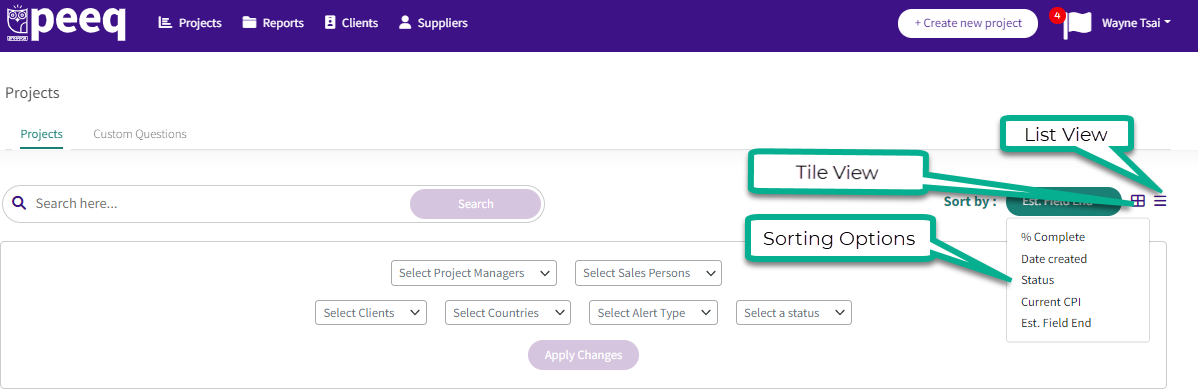
Projects can be displayed as a List View or Tile View, sorted by the criteria listed in the Sort By options:
- If a recently created project does not appear, filter for Pending status, and check the Project Manager filter has your name, or is set to “All”
- If no Project Managers are selected, projects for all users in your peeq account will be shown
- Additional information on the project status can be found in the Project Status Article
Alerts
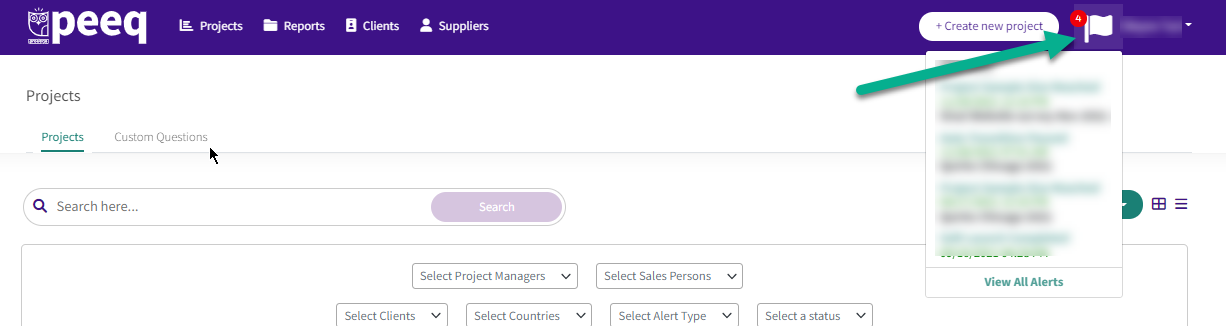
Project Alerts appear in the top right corner of the dashboard. Clicking on the icon will show alerts associated with your projects, which can include when a project reaches it’s specified sample size, or when a project is auto-paused for any reason.
Project Actions
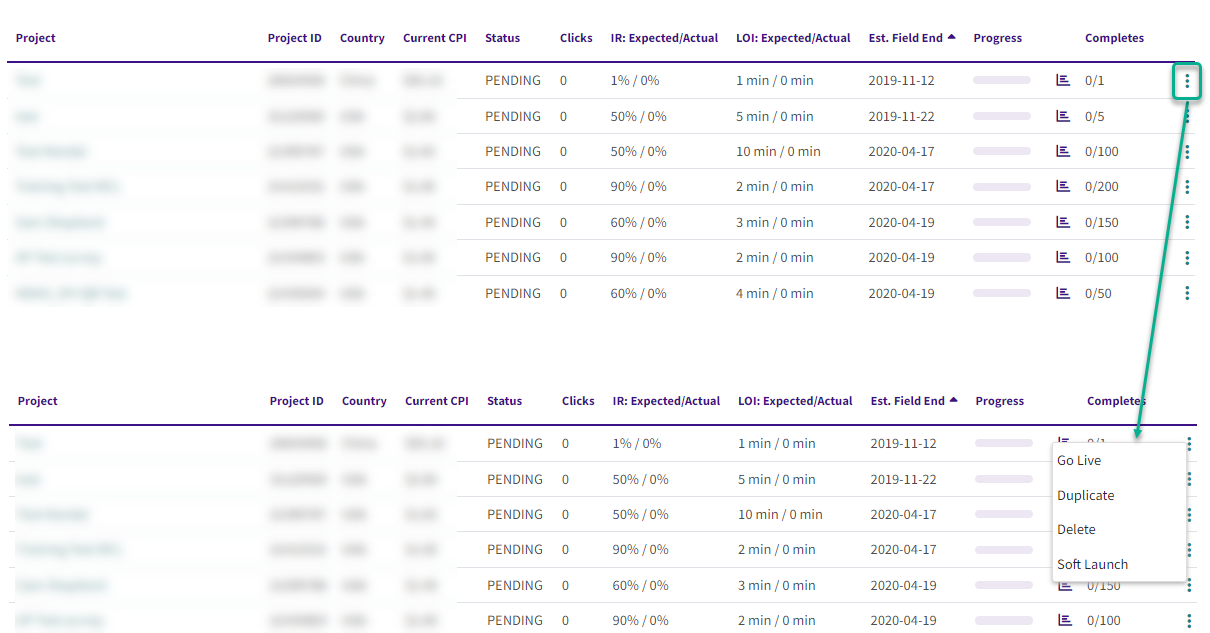
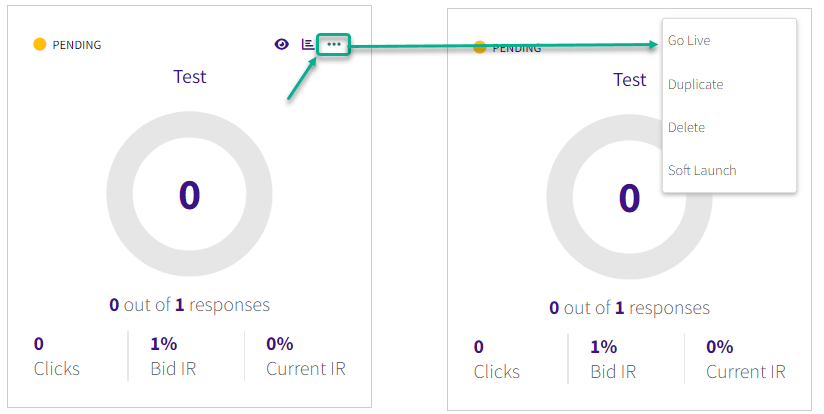
Projects can be launched, paused, deleted or duplicated directly from the dashboard by clicking on the three dots on the right hand side, or the top right corner of the project tile. Both views display the status and current performance metrics of each project.
List View:
 Tile View:
For additional information on project setup, please see our help section on Project setup, launch and management
Have more questions or need additional support?
Our experts are happy to do a screen share and walk-through this process with you.
Submit a request or Live Chat with us!