
There are several ways to create a new project in Prodege peeq: Directly from the dashboard, converting a feasibility report and duplicating an existing project.
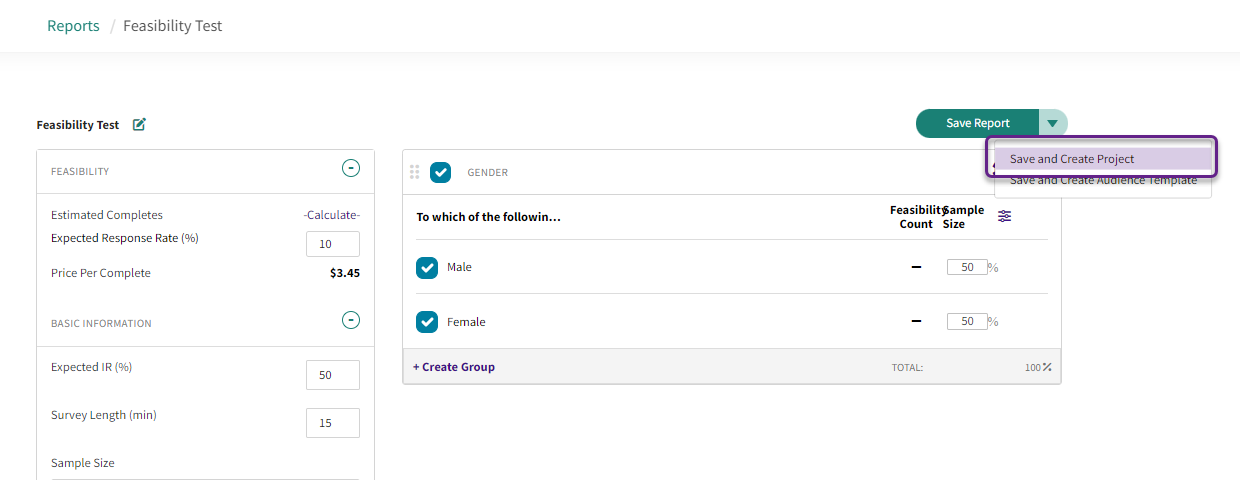
When a project is created from a feasibility report, Prodege peeq will automatically include the targeting from the feasibility report into the sample group setup of the new project.
Project Launch Checklist
- Create a new project from the Dashboard or from a feasibility report
- Update project information
- Set up Sample Group(s) with targeting and quotas
- Implement and test survey link
- Soft launch -> Full Launch
Creating a new project in Dashboard
Click the 'Create' new project button from the top navigation and fill out the Project Info page.

Note: If a newly created project does not appear in your dashboard, ensure the status filter is set to include PENDING and refresh the filters, as all new projects are under that status
Creating a project from Feasibility Report
Enter the feasibility report to be converted to a project. Under “Save Report” click the dropdown and select “Save and Create Project”
Project Information fields
These fields contain the initial project information used to guide the initial project launch and track the project metrics and progress. Below are the definition and use for each of the fields on the Project Information page
Basic Project Information
- * Your PO Number: The information entered into this field will be used as this project’s line item on the monthly invoice
- * Project Name: This is used as an internal reference in Prodege peeq and is not exposed to respondents
- Project Manager: Users under your Prodege peeq account can be added here to receive project alerts and allow for filtering by PM. Multiple collaborators can be added to one project.
- Sales Rep (OPTIONAL): Users in your Prodege peeq account can be added as Sales Reps. Note: All project and pricing change alerts for a project are sent to the project manager(s) and sales rep(s) listed in a project
- Client (OPTIONAL): Any clients that have been entered under your account will be available to select here. Client information added to your account is not shared with anyone except for users the users under on your Peeq account
Survey Information
- * Country: The country this project will field in. This affects the available profiling and the survey language. If your project requires multiple countries, each country will require its own
- * Sample Size: The total number of completes required for this project. Traffic will automatically pause when this number is reached and an alert will be sent to the project manager(s) listed. This can be updated at any time
- * Expected IR: The Expected Incidence Rate (IR) is the likelihood that a respondent qualifies after targeting.
- * Survey Length: This represents the amount of time in minutes it will take to complete the survey. This is used in conjunction with the Expected IR to calculate the initial CPI and soft launch traffic. The survey length is the only information displayed to respondents before starting the survey.
- * Est Field Start and * Est Field End: These fields are the expected start and end dates of the project. These fields are a reference for the project manager(s), and used by certain Prodege peeq alerts (if enabled). The start and end date do not affect the speed or volume of sample traffic. Sampling will continue past the Field End Date, and only pauses when the target sample size is reached
- Notes: The notes field can be used as an internal collaboration area for you and your team. Notes can only be viewed by users on your Peeq account and are not shared anywhere else
Duplicating a project
Prodege peeq does not automatically exclude from the original project when duplicated.
Duplicate Project Checklist:
- Update project information fields
- Update Project exclusions from previous study if applicable
- Check Max CPI under “Settings”
- Check Sample groups and associated targeting
Considerations:
- Duplicating a study to drive additional traffic is not recommended unless advised by the support team.
- If multiple projects use the same survey link, ensure the correct project exclusions under “Settings” tab have been selected to avoid duplicate entries
- Multiple projects with identical targeting and survey links with no mutual exclusions may be flagged and paused to prevent multiple survey entries
Deleting a project
Projects can deleted if there has been no live traffic in the study
Have more questions or need additional support?
Our experts are happy to do a screen share and walk-through of this process with you.
Submit a request or Live Chat with us!