
If you have been designated as an administrator of your Prodege peeq account, you can add, change or remove access to individuals within your account. There is no additional charge and no limit to the number of users that can be added to your account.
Managing Users
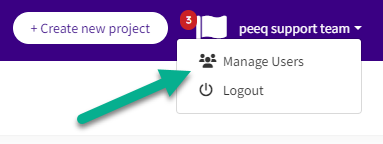
Access the "Manage Users" section from your name on the top right navigation.
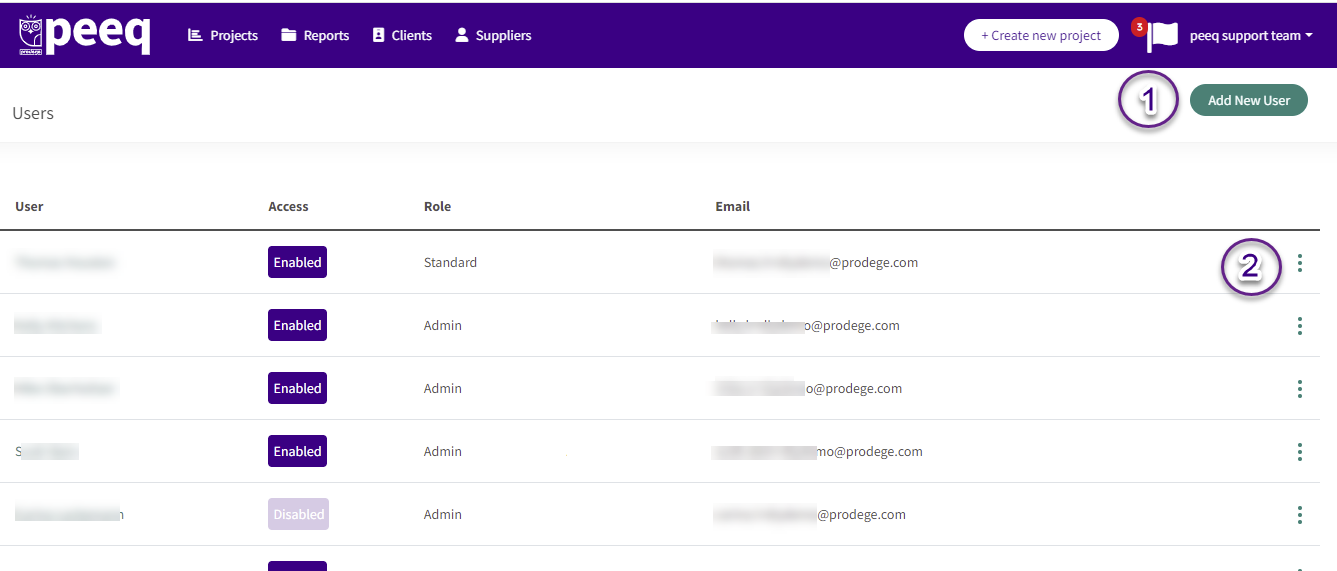
A list of existing users for your account will be listed along with the corresponding status and role.
To edit an existing user or reset their password, click the 3 dots menu (Reference #2)
Add A New User
When a new user is created, a welcome email with login instructions will be sent to their email address.
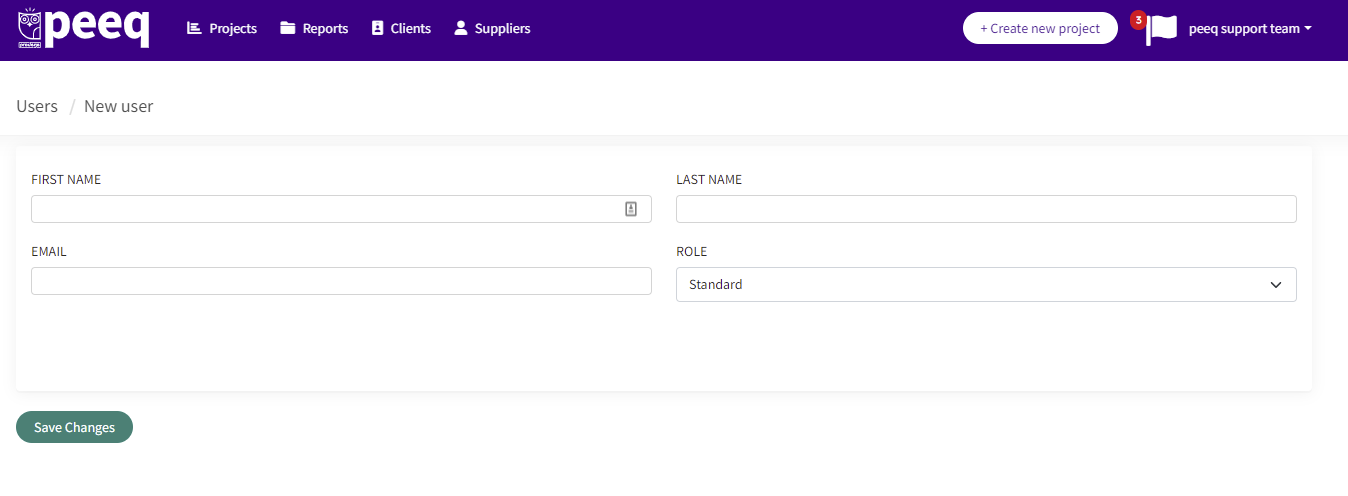
Click "Add New User" and enter their first and last name, and their email address.
Roles: The default role is "Standard" when adding a new user. The 'Admin' role allows a user to add/edit other users.
Update an existing user
Click the 3 dots menu to the right of the user. The following actions can be achieved via this menu:
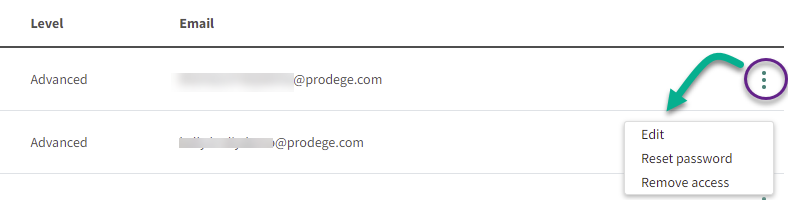
- Edit: a user's first, last name, email address information
- Reset: an existing users password. Upon this action, a user will receive a password reset email
- Remove Access: to an existing user. These users will be marked as "Inactive" status when removed and will no longer be able to login to your Prodege peeq account