
This article covers the basics of setting up and managing the targeting in sample groups within Prodege Peeq. For information on setting quotas, target exclusions, distributing sample, and nesting targeting criteria, please refer to this article
Each sample group represents a set of targeting criteria, and can be set to active or inactive target specific audiences.
- Sample groups can be set to collect clicks or completes.
- Sample groups can be set to Active or Inactive depending on the targeting needs of the project at the time
- Each sample group can target a different amount of completes or clicks and the sum total of completes or clicks requested in sample groups does not need to match the project's Total Completes
- Traffic to a sample group will stop once the target number for that sample groups is reached
Creating and Managing Sample Groups
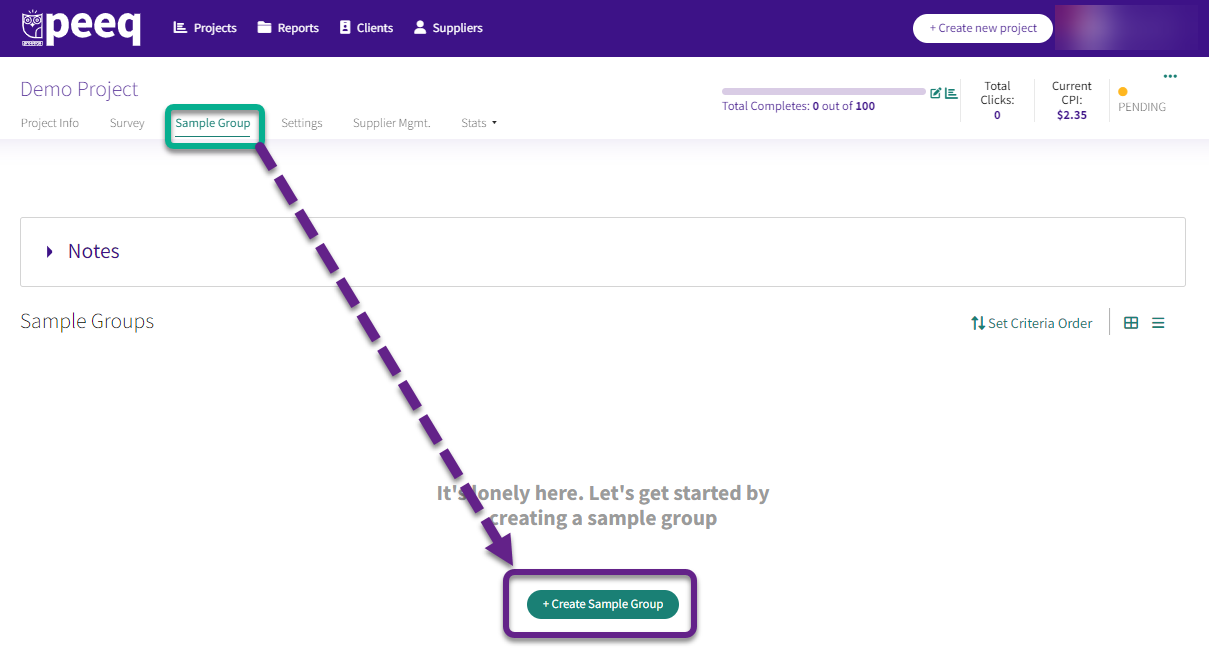
Click on the Sample Group tab in the project and "+Create Sample Group." You may select an existing template or choose to set up a sample group from scratch.
Sample Group Setup Menu Overview
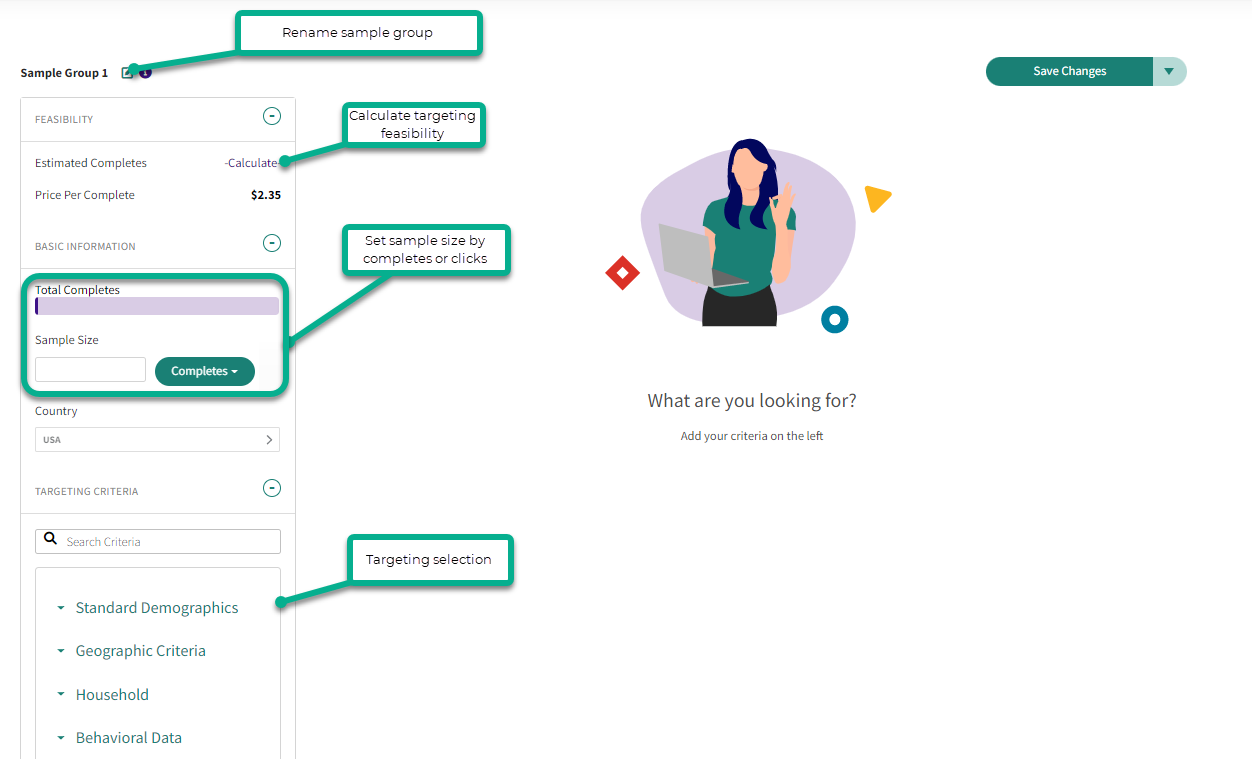
- Feasibility for a sample group can be run on the fly
- Renaming the sample group is recommended when using multiple sample groups
- The Price Per Complete (CPI) will be indicated here based on the Survey Length (LOI) and Incidence Rate (IR) on the project information page
Sample Group Management
Clicking on the three dots in the right corner of a sample group will show a menu with a few options:
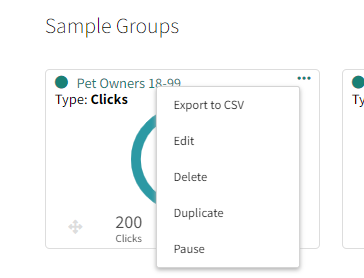
- Export to CSV: Exports a CSV with the target criteria and quota numbers to a CSV file
- Edit: Enters the sample group for editing
- Delete: A sample group can only be deleted if no live sample has entered the survey
- Duplicate: Creates a copy of the sample group
- Pause: Sets the sample group to Inactive and pauses traffic to the sample group
Adding Targeting to a Sample Group
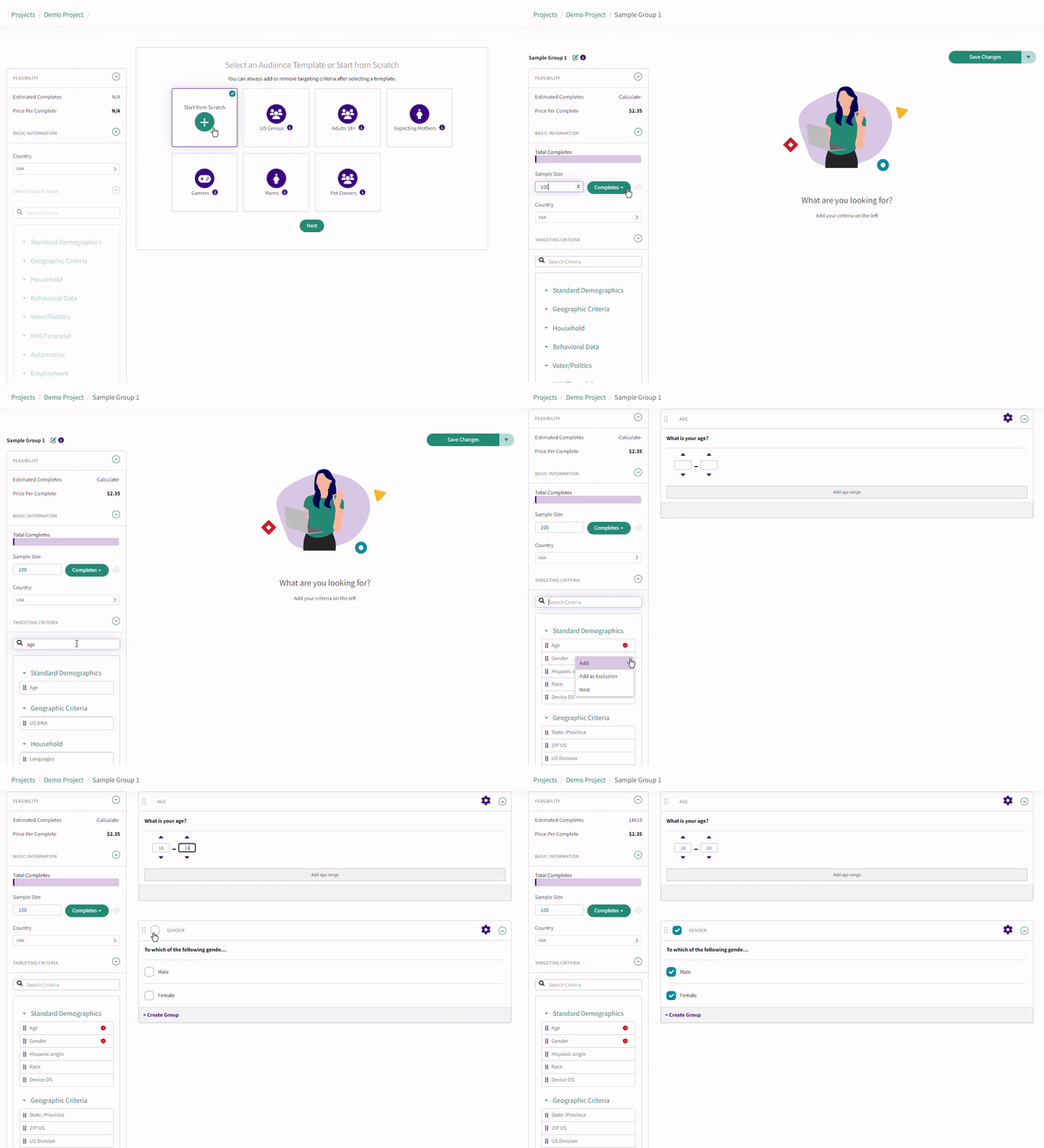
To add a sample group, you can drag and drop the targeting criteria from the left to right, or hover on the right hand side of the targeting and click "Add." Click the checkbox to select the targeting desired
Removing Targeting from a Sample Group
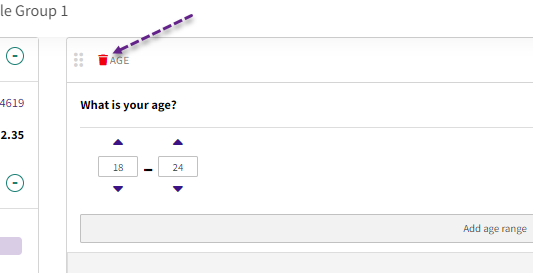
To remove a target from a sample group, hover next to the name of the sample group and click the red trash can
Question Ordering
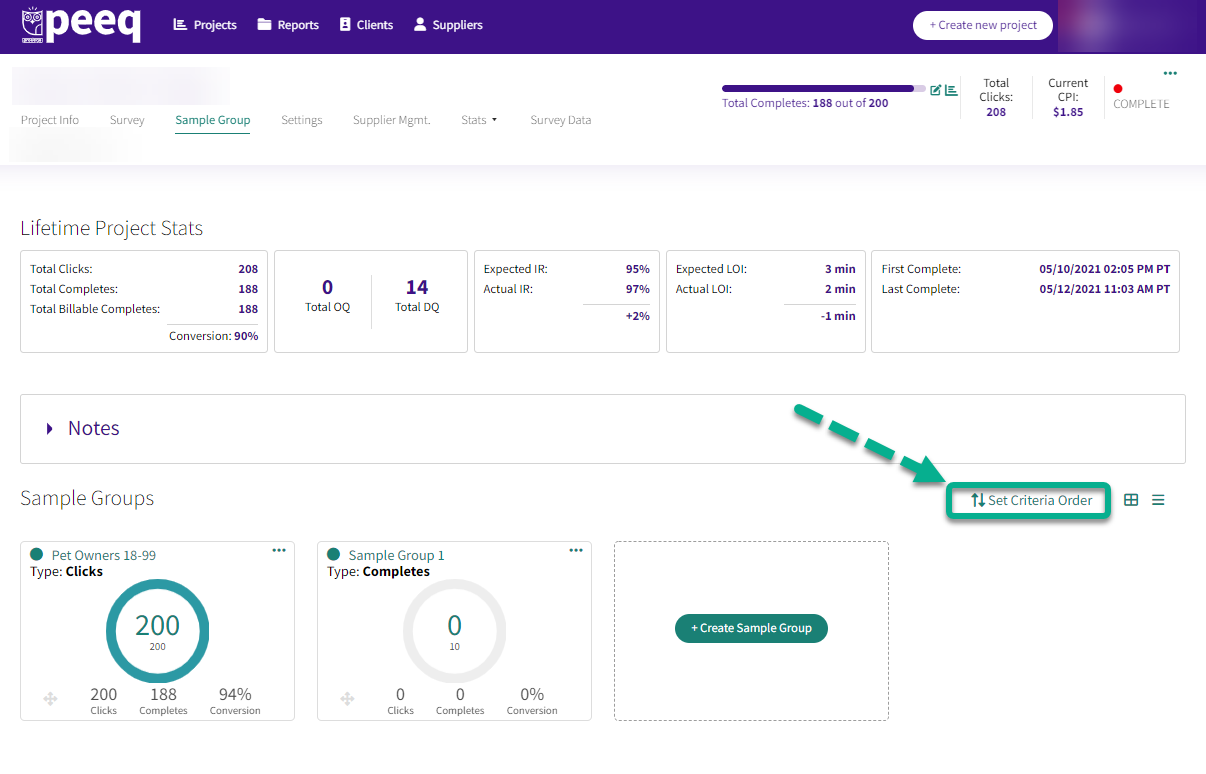
The order in which targeting criteria questions are presented to incoming respondents can be set by reordering the targeting questions under "Set Criteria Order" on the Sample Group page. If no order is specified for a given project, the question will continue to appear in a randomized order.
Have more questions or need additional support?
Our experts are happy to do a screen share and walk-through of this process with you.
Submit a request or Live Chat with us!